Use practical virtual staging prompts for living rooms, bedrooms and kitchens. Specify what to keep, choose furnishings and review AI changes.
Real RenderVibe before-and-after examples
Reference photos and saved results from RenderVibe tests. These are visual concepts, not photographs of completed work. Briefs below summarize the requests; source credits accompany licensed stock photos.
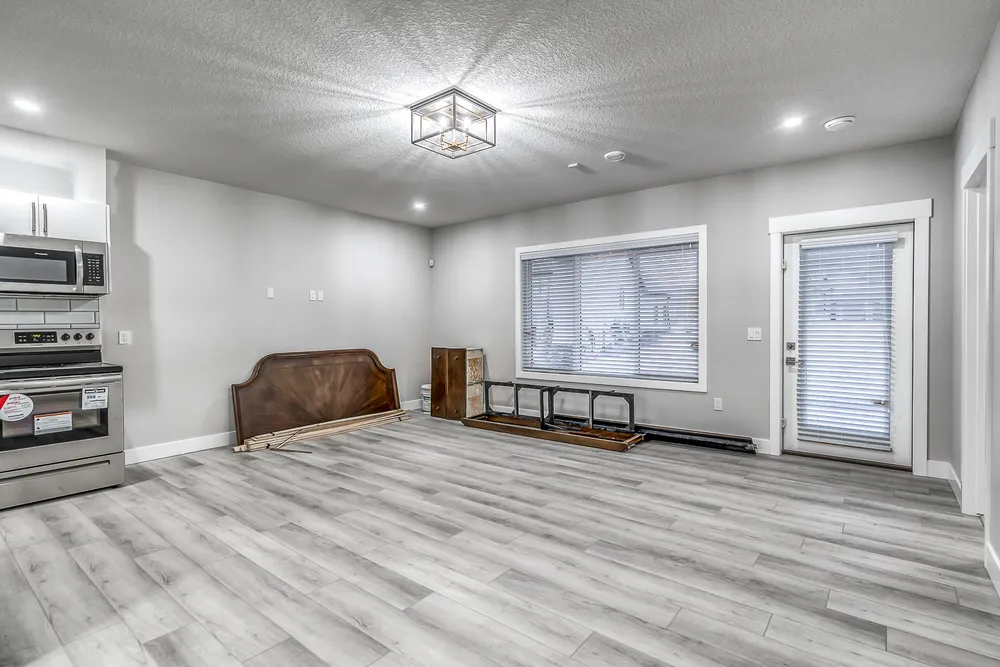
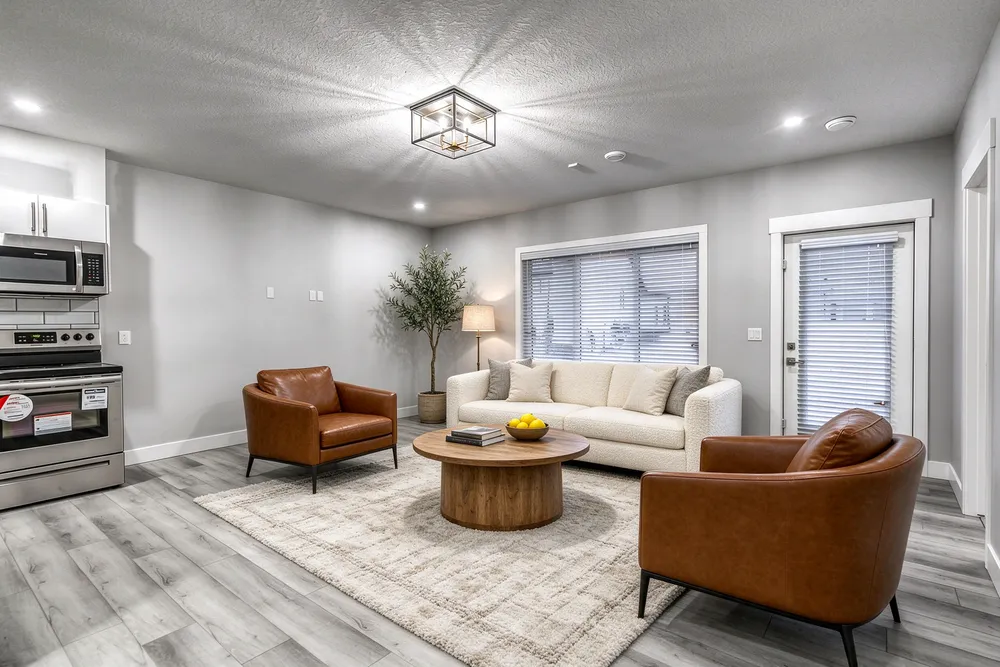
From a cleared room to a living-room concept
Before · source photoAfter · AI-generated concept
The brief: Add a cream sofa, cognac chairs, an oak coffee table and a textured rug. Remove stored furniture pieces and keep the room’s existing finishes.
What to review: The result illustrates a seating arrangement around the existing window and door. Compare the floor, openings and furniture scale with the source before using it.
A new account gets one starter credit for a watermarked preview. The US$4 Starter pack includes five credits and clean downloads. A standard image uses one credit; check your quote for other requests. Compare all credit packs and monthly plans.
Start with what should stay
A useful staging prompt separates the room from the furniture you want added. Name the floor, walls, windows, doors, built-in cabinets and fixtures that should remain. Then describe movable pieces and the atmosphere you want. This gives you a checklist for reviewing the finished image. Keep the brief specific to the photograph you upload, rather than copying details that belong to another room. An instruction to preserve architecture is a request to the AI, not a guarantee: inspect openings, proportions and surface details in every result, even when the furniture looks convincing.
Living-room prompt
Try this template: ‘Stage this room as a warm living space. Add a cream sofa, two brown accent chairs, a round oak coffee table and a textured rug. Remove stored loose furniture pieces. Keep the floor, walls, windows, door and ceiling fixtures.’ This is a shortened version of the request behind our living-room example above. The proposed furnishings provide a specific arrangement and palette without combining several unrelated design styles. Compare the result with your photograph before deciding whether another version is useful.
Small-bedroom prompt
A focused example is: ‘Add a bed along the left wall, a compact desk beneath the window, a small nightstand and a rug. Keep the closet entrance clear and retain the existing window, doors and timber floor.’ The small-bedroom case study shows the source and result from a related test. Adjust the wording to your actual room. Do not assume the model knows the dimensions of your chosen bed or desk; confirm fit with measurements.
Kitchen styling prompt
Start with small additions: ‘Add a bowl of lemons, a small vase of greenery and a cookbook. Keep the cabinets, counters, appliances, backsplash and floor.’ Only request stools where the actual kitchen has suitable seating space. Our kitchen finish example explores green cabinetry without added seating. It also documents an unintended door-profile change, showing why you should compare the result with the source. A decorative concept is different from changing cabinet materials or planning a renovation.
Write revisions around one problem
Instead of asking to ‘make it better,’ identify the detail that needs work. For example: ‘Remove the chair nearest the door and keep the rest of this arrangement,’ or ‘Use a smaller rug while keeping the window and floor unchanged.’ Review the original again after each version because changes can extend beyond your request. A revision should resolve a specific question. If you change the furniture, palette, lighting and room layout together, it becomes harder to tell which change improved the result.
Review the quote and the finished image
RenderVibe shows a credit quote before generation. A standard single image uses one credit, and a new account receives one starter credit for a watermarked preview. Additional completed versions use credits, so decide what you are testing before you submit. Read the cost guide for paid downloads and plan allowances. Start with AI home staging, then use the staging guide to check your image before sharing it as a clearly identified virtual concept.