Explore kitchen colours, finishes and styling with RenderVibe. Start from your photo, compare a visual concept and review the credit quote before generating.
Plan your first design brief
Choose a direction before opening the studio. Your choices carry through sign-in into an editable brief. Upload your own photo there and review the quote before generating.
One starter credit per new account gives a watermarked preview. A standard image uses one credit; other requests can cost more. Paid credits unlock clean downloads. Selecting options here costs nothing.
Reference photos and saved results from RenderVibe tests. These are visual concepts, not photographs of completed work. Briefs below summarize the requests; source credits accompany licensed stock photos.
White cabinets to a sage-green kitchen concept
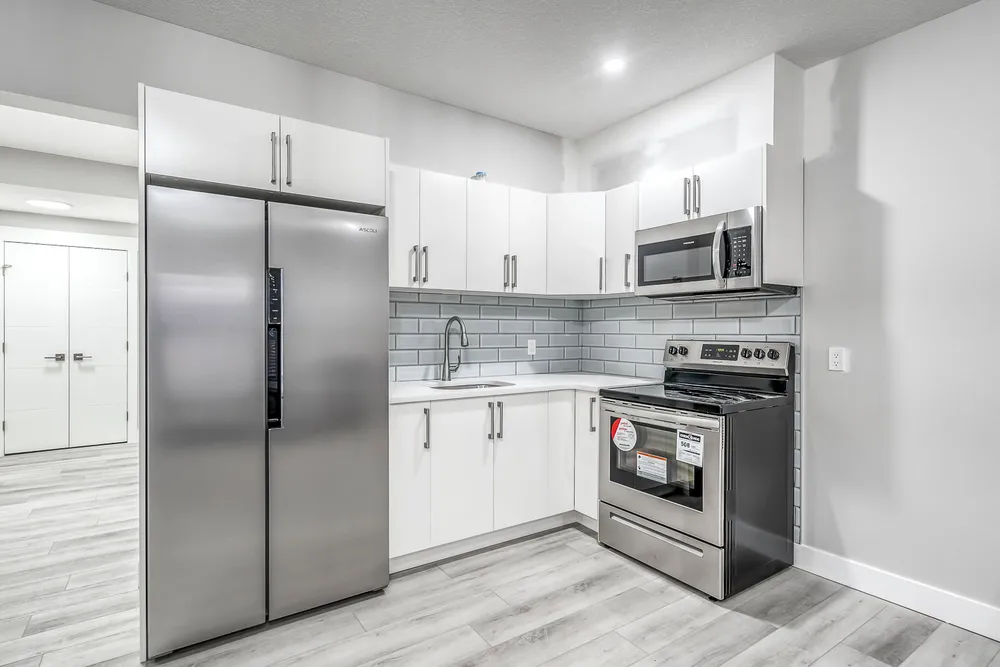
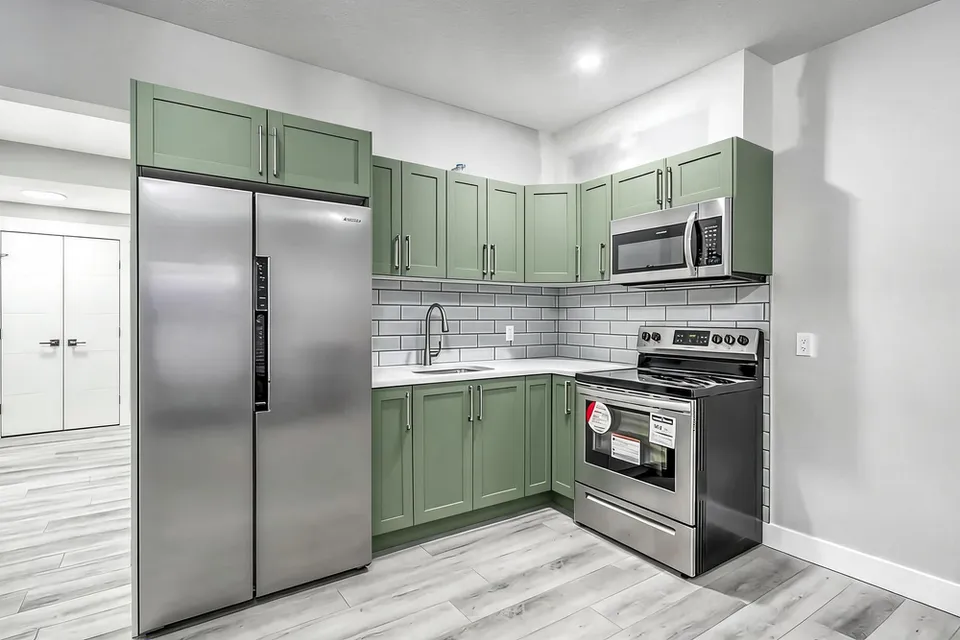
Before · source photoAfter · AI-generated concept
The brief: Repaint every upper and lower cabinet in muted sage green. Keep the flat doors, silver handles, appliances, counters, backsplash and floor; add no furniture.
What to review: The result gives a coordinated green cabinet direction and keeps the floor free of added furniture. It also introduces framed door fronts despite the flat-door instruction. Use this as a colour-and-door-style concept, not an exact preview of repainting the existing doors.
A new account gets one starter credit for a watermarked preview. The US$4 Starter pack includes five credits and clean downloads. A standard image uses one credit; check your quote for other requests. Compare all credit packs and monthly plans.
Start with the kitchen you have
A kitchen photograph gives your design brief a specific starting point: cabinet positions, appliances, windows and the relationship between work surfaces. Upload a clear photo to RenderVibe and describe the question you want the image to answer. You might explore a warmer cabinet colour, a different backsplash direction or a lighter decorative scheme. An AI concept can help you explain a preference to a designer or household member. It does not turn the photograph into a measured kitchen plan. Save your original brief with the comparison for later reference.
Separate a finish change from a layout change
For a finish comparison, name the surfaces you want to change and the parts you want preserved. Our test asked for muted sage-green cabinetry while retaining flat doors, silver handles, appliances, counters, backsplash and flooring. Choose “Try a new look” in the studio for a whole-room finish concept. Review the quote and the complete brief before generating. A selected-area edit is better suited to an individual surface than every cabinet in a room. Moving a sink, removing a wall or adding an island raises different questions about space and services. Do not use a generated image to establish that those alterations are feasible.
Compare one material decision at a time
Keep the same source photograph while you compare two directions. Start with cabinet colour, then decide whether a counter or backsplash exploration would answer a separate question. Changing every finish at once can make it harder to identify what you actually prefer. Describe texture as well as colour: matte painted cabinetry, warm timber or a softly patterned surface. Use physical samples before ordering. A rendered finish will not reliably reproduce a manufacturer’s colour, grain or appearance in your kitchen’s lighting.
What our kitchen example demonstrates
The comparison above shows the same kitchen as a white-cabinet reference and a sage-green concept generated in RenderVibe. The revised result colours the upper and lower cabinets without adding stools or obstructing the floor. It also changes the original flat doors to framed fronts, even though the brief requested flat doors. That difference matters: this illustrates a colour and door-style direction, not paint alone. Check cabinet profiles, appliance access, drawer openings and walkways against the source. Keep the comparison labelled as an AI concept when discussing it with a cabinet supplier.
Review costs before another version
A new account receives one starter credit for a watermarked preview. A standard single image uses one credit; other requests may cost more, and the displayed quote is the amount to review before confirming. The US$4 Starter pack includes five credits and clean downloads. Further iterations use credits too, so choose a specific question for each version. See the credit and staging cost guide for the difference between a free preview, one-time packs and monthly credits.
Choose your next step
For a broader scheme, explore AI interior design. For room-by-room furniture ideas, use AI room design. If you are preparing a property for sale, the AI home staging workflow and staging prompt guide help separate furnishings from changes to the property. Keep the source image alongside the result so everyone reviewing the concept understands what exists and what was proposed.