Explore furniture, colours and finishes with AI interior design from your room photo. Compare RenderVibe concepts with your original before making decisions.
Real RenderVibe before-and-after examples
Reference photos and saved results from RenderVibe tests. These are visual concepts, not photographs of completed work. Briefs below summarize the requests; source credits accompany licensed stock photos.
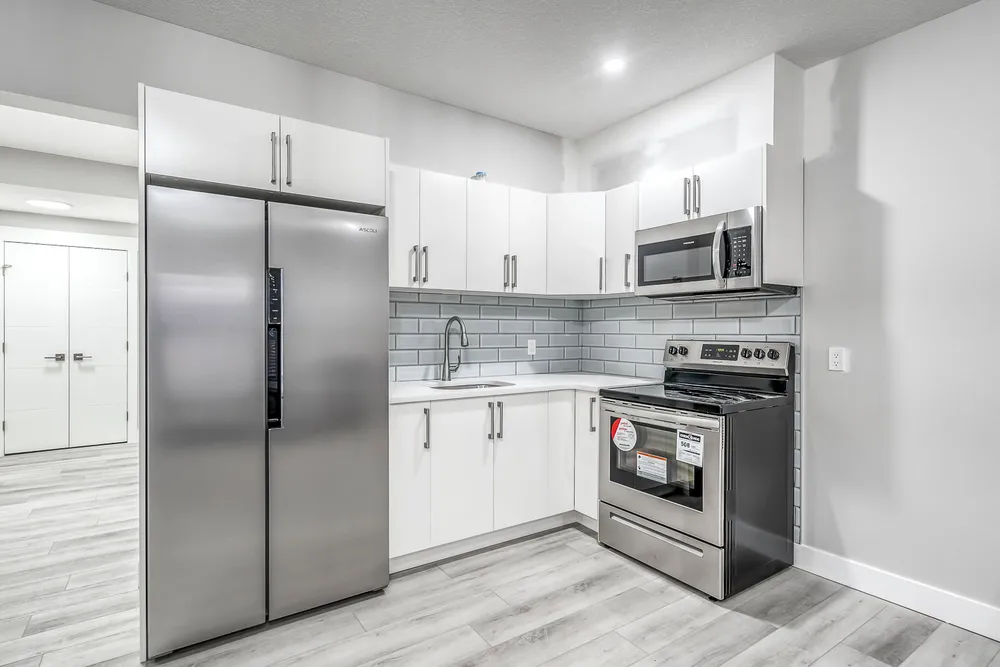
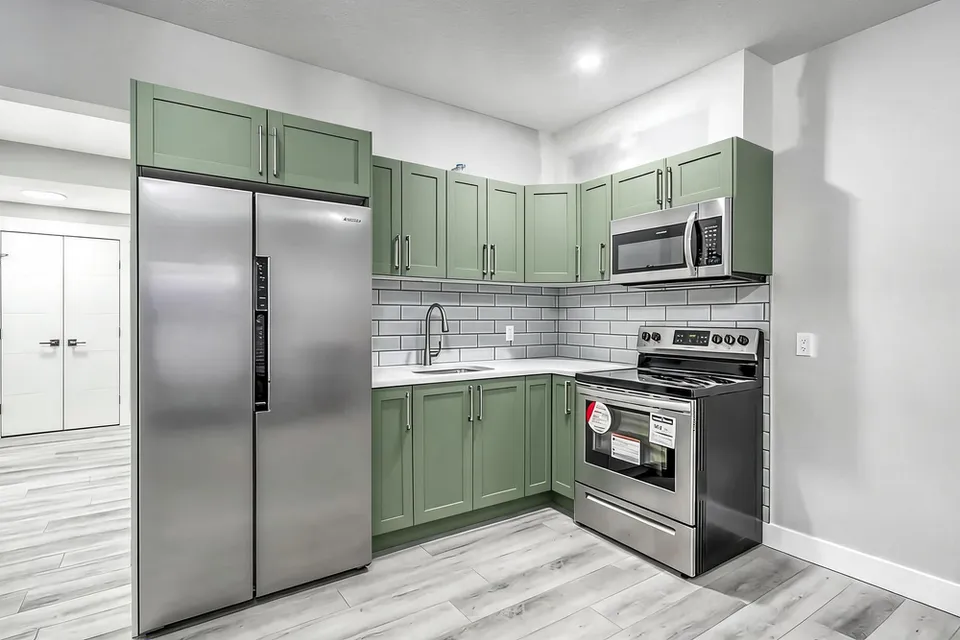
White cabinets to a sage-green kitchen concept
Before · source photoAfter · AI-generated concept
The brief: Repaint every upper and lower cabinet in muted sage green. Keep the flat doors, silver handles, appliances, counters, backsplash and floor; add no furniture.
What to review: The result gives a coordinated green cabinet direction and keeps the floor free of added furniture. It also introduces framed door fronts despite the flat-door instruction. Use this as a colour-and-door-style concept, not an exact preview of repainting the existing doors.
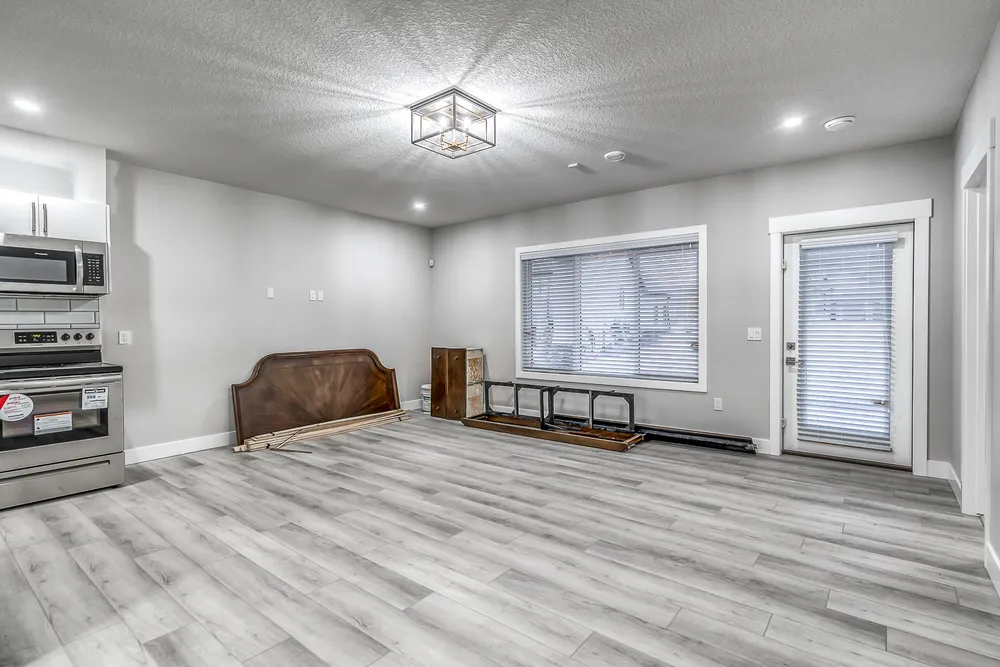
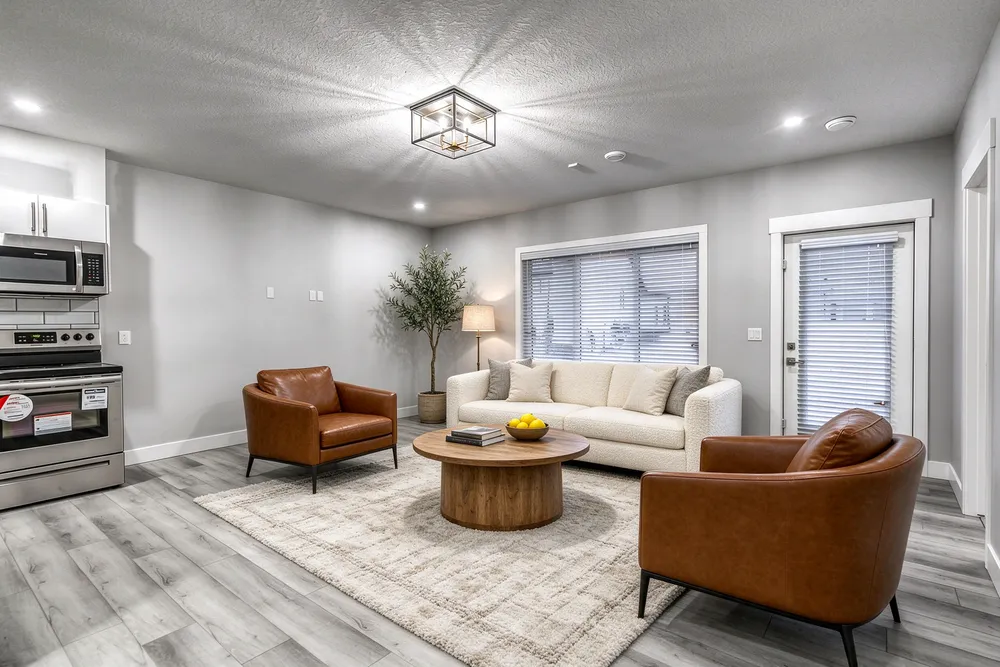
From a cleared room to a living-room concept
Before · source photoAfter · AI-generated concept
The brief: Add a cream sofa, cognac chairs, an oak coffee table and a textured rug. Remove stored furniture pieces and keep the room’s existing finishes.
What to review: The result illustrates a seating arrangement around the existing window and door. Compare the floor, openings and furniture scale with the source before using it.
A new account gets one starter credit for a watermarked preview. The US$4 Starter pack includes five credits and clean downloads. A standard image uses one credit; check your quote for other requests. Compare all credit packs and monthly plans.
Turn a design brief into something you can discuss
Choosing a finish or furniture combination from words alone can be difficult. AI interior design gives you a visual starting point for those conversations. In RenderVibe, upload a room photograph and describe the atmosphere, furniture and finishes you want to explore. The result helps you discuss how the pieces might work together before committing to a direction. It is useful when a homeowner can name a feeling but cannot yet describe a complete scheme, or when a designer wants a quick concept to support an early discussion.
Separate fixed features from proposed changes
Start by identifying what should remain in the room. You may want to keep the timber floor, windows and fireplace while exploring cabinetry, wall colour or seating. Describe those constraints in your prompt, then list the proposed changes in order of importance. For example, ask for warm white walls, walnut cabinetry and a cream sofa while keeping the current openings. Be specific about textures and relationships: a matte finish, a lighter worktop, or furniture that leaves a clear route through the room. This gives the concept a practical focus.
Compare one direction at a time
A useful comparison answers a single question. You might compare light oak with walnut, a neutral wall with a deeper colour, or one seating arrangement with another. Avoid changing every part of the room between versions if your goal is to settle one decision. Keep your source image and brief nearby, then note what you like and what needs to change. RenderVibe’s visual concepts can support a conversation about selections, but the image itself is not a product catalogue. Identify real materials and furniture separately before making a purchase.
Build a brief around everyday use
Think about how the people in the home will use the room. A kitchen used for family meals may need a different visual emphasis from a space intended for entertaining. The AI kitchen design guide walks through finish choices and a real styling comparison. Describe the desired seating, the feeling of the lighting and the surfaces that matter most. Mention whether you want a restrained palette or a stronger contrast. Avoid relying on a long list of unrelated style labels. A short description of use, materials and the elements you want preserved gives you a clearer basis for reviewing the generated result.
Check the image before making decisions
Look for changes to windows, doors, stairs and built-in features that were not part of the brief. Examine furniture scale, reflections and joins between materials. AI concepts can contain inconsistencies, and a pleasing image does not verify dimensions, construction details or a finish’s exact colour. Use physical samples and measured plans when decisions move beyond exploration. If you need to focus on a specific room rather than a whole scheme, the AI room design guide explains how to frame a room-level request.
Start small and review the cost
A new account gets one starter credit for a watermarked preview. Review the credit quote before confirming each generation. Paid access lets you download clean images and generate more; the US$4 Starter pack supplies five credits, with larger one-time packs and monthly plans available in the studio. A standard single image uses one credit, and failed generations return their credits. If your work is preparing a property for listing photographs rather than choosing a personal design scheme, start with AI home staging or the realtor guide to virtual staging.