Stage listing photos with RenderVibe. Compare a watermarked preview with your original room, then choose a credit pack for clean downloads.
Real RenderVibe before-and-after examples
Reference photos and saved results from RenderVibe tests. These are visual concepts, not photographs of completed work. Briefs below summarize the requests; source credits accompany licensed stock photos.
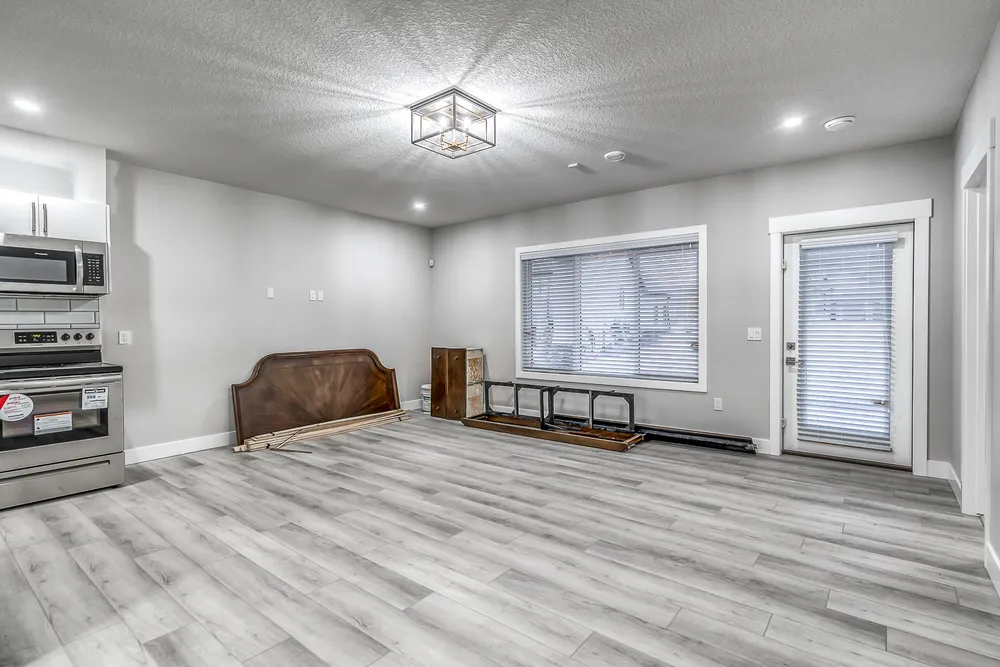
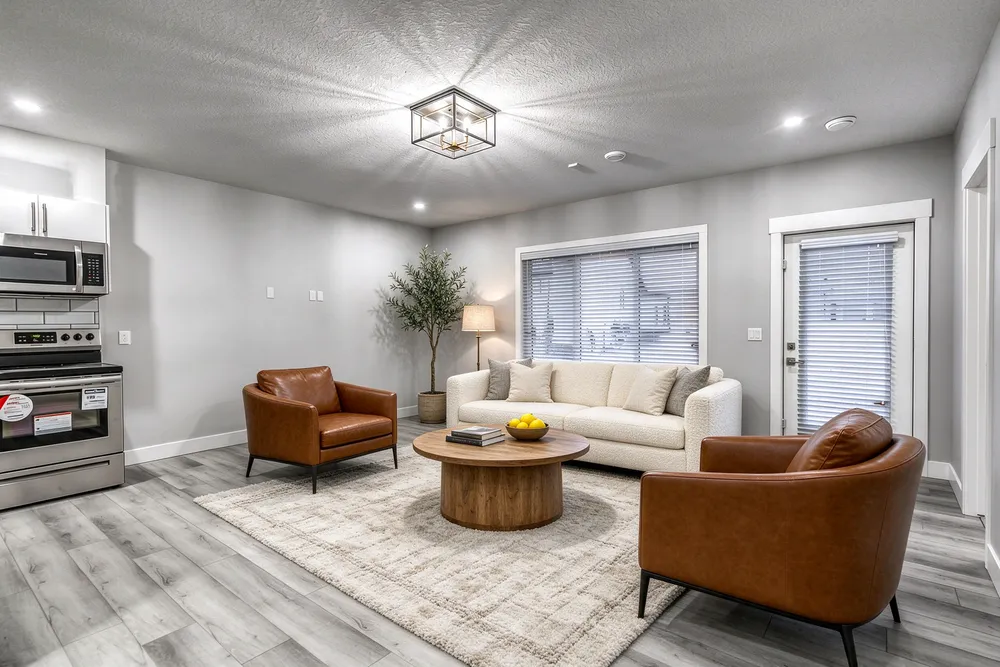
From a cleared room to a living-room concept
Before · source photoAfter · AI-generated concept
The brief: Add a cream sofa, cognac chairs, an oak coffee table and a textured rug. Remove stored furniture pieces and keep the room’s existing finishes.
What to review: The result illustrates a seating arrangement around the existing window and door. Compare the floor, openings and furniture scale with the source before using it.
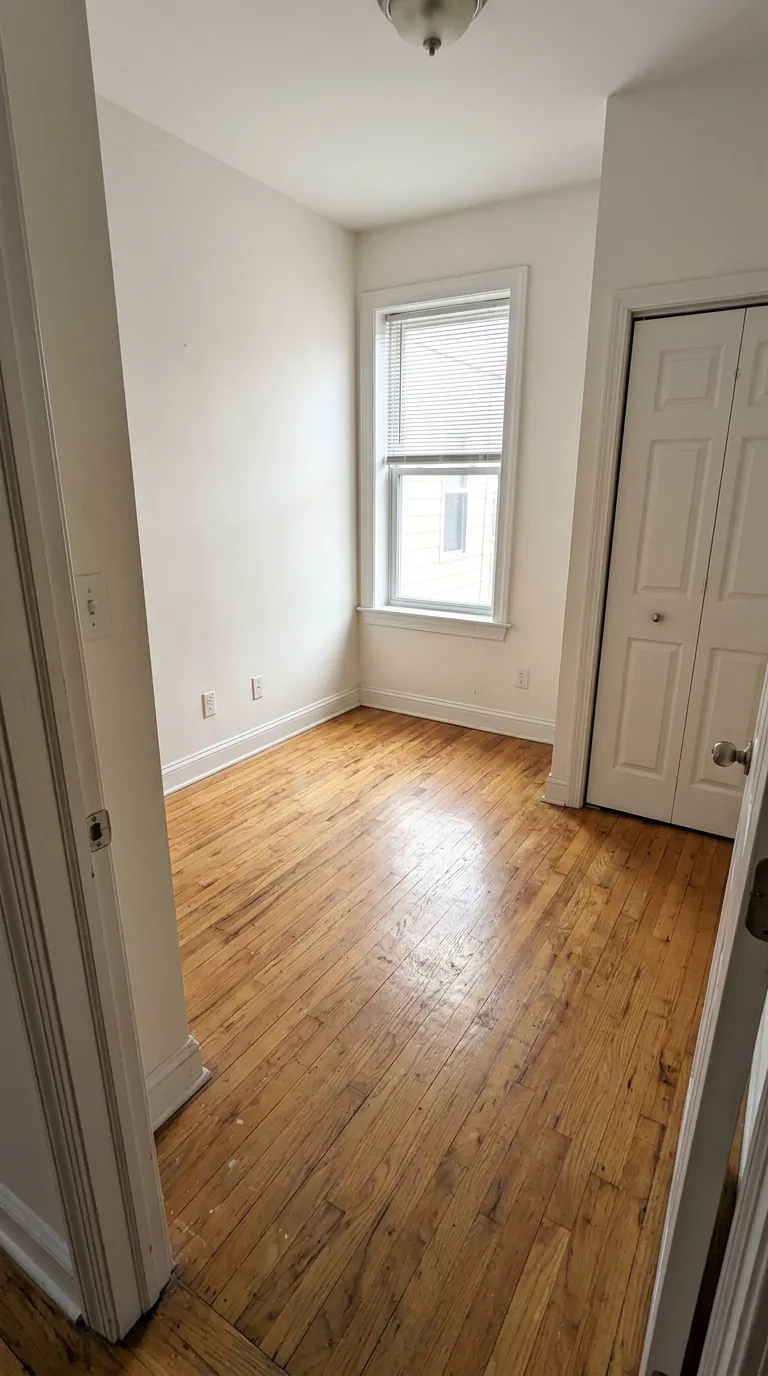
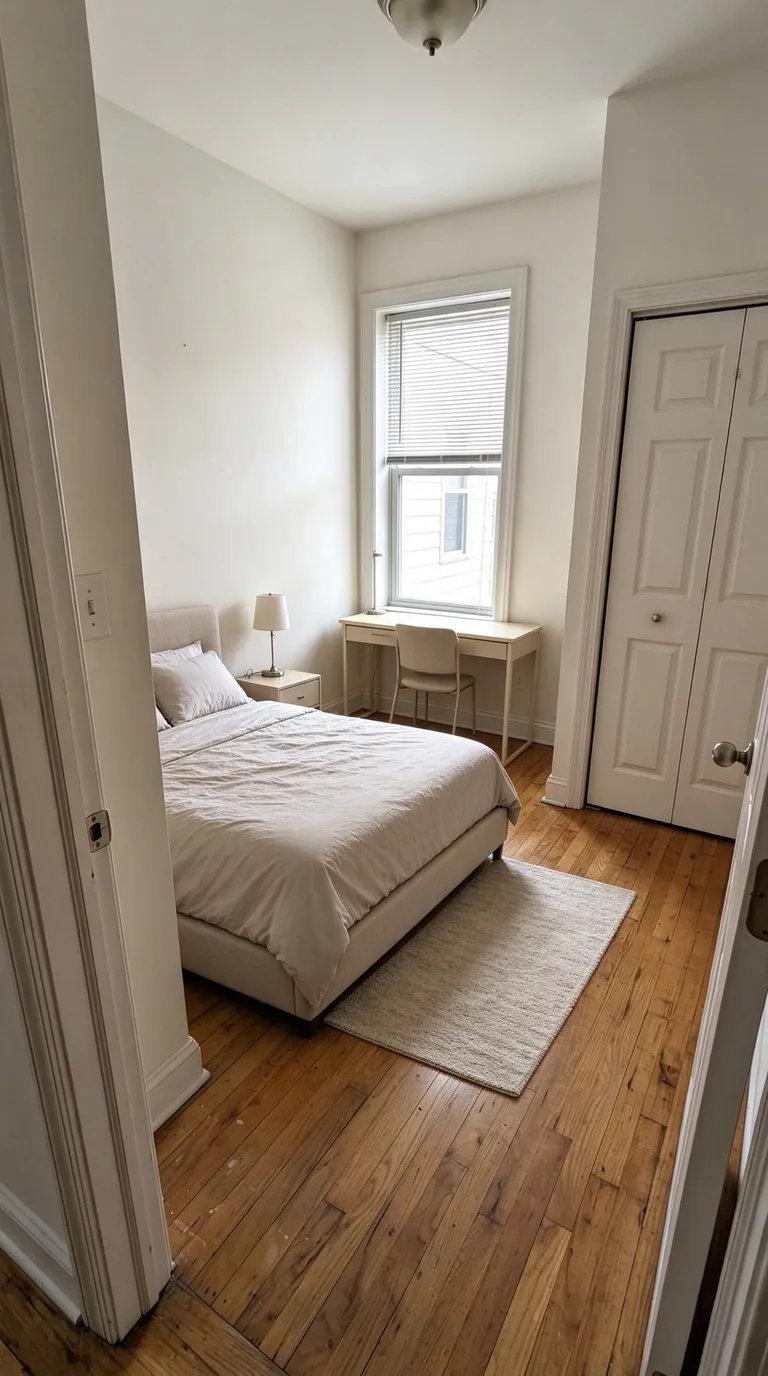
A compact bedroom with a study area
Before · source photoAfter · AI-generated concept
The brief: Add a bed along the left wall, a desk under the window, a nightstand and a small rug. Keep the closet accessible.
What to review: The concept explores how sleeping and study areas could share a small room. It does not verify that the furniture fits; measure circulation and closet clearance separately.
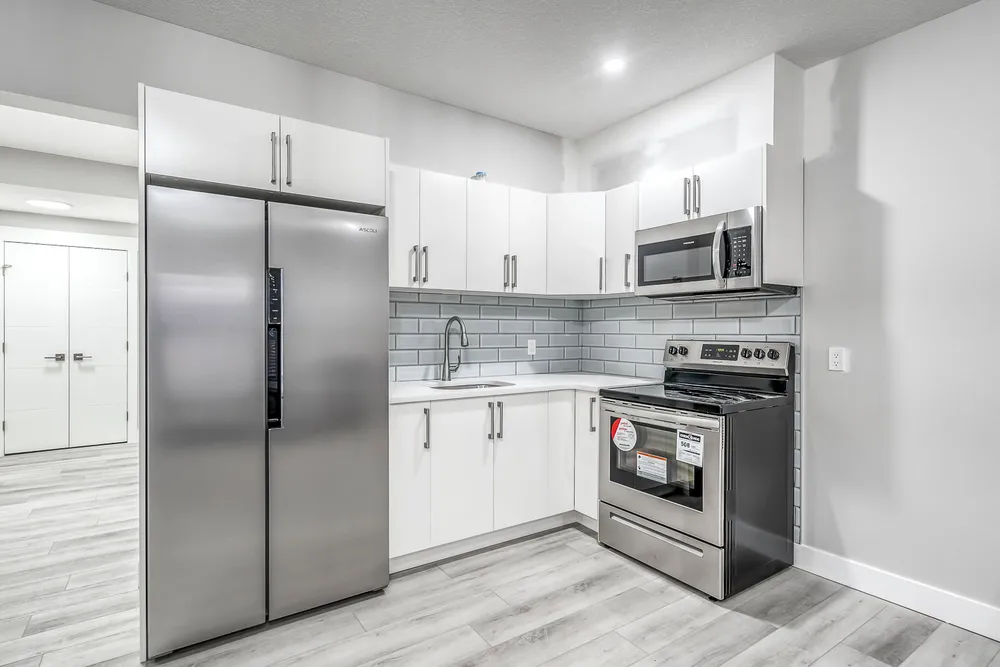
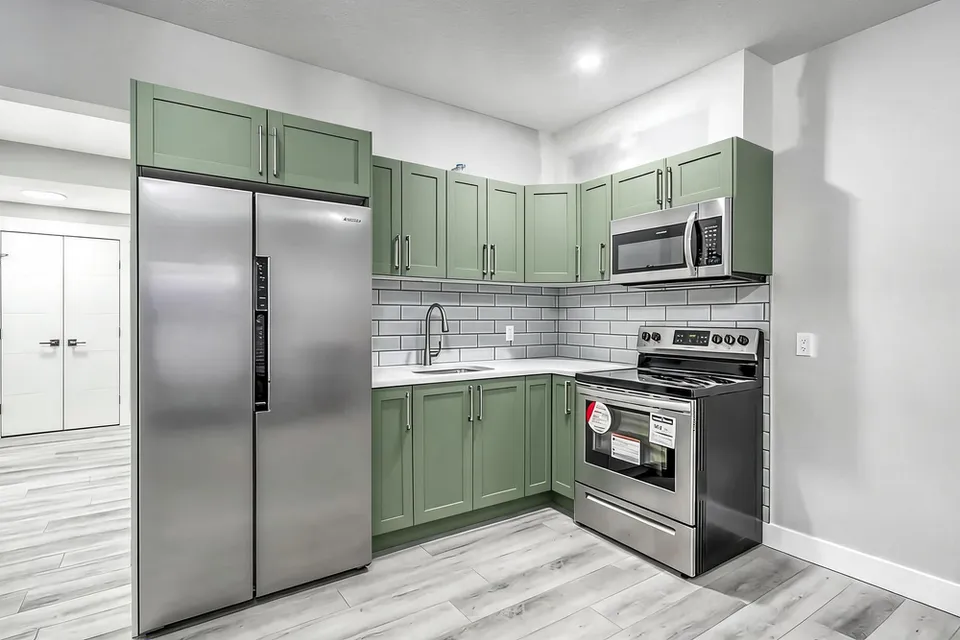
White cabinets to a sage-green kitchen concept
Before · source photoAfter · AI-generated concept
The brief: Repaint every upper and lower cabinet in muted sage green. Keep the flat doors, silver handles, appliances, counters, backsplash and floor; add no furniture.
What to review: The result gives a coordinated green cabinet direction and keeps the floor free of added furniture. It also introduces framed door fronts despite the flat-door instruction. Use this as a colour-and-door-style concept, not an exact preview of repainting the existing doors.
A new account gets one starter credit for a watermarked preview. The US$4 Starter pack includes five credits and clean downloads. A standard image uses one credit; check your quote for other requests. Compare all credit packs and monthly plans.
Help buyers picture a furnished room
An empty living room can make it difficult to picture where a sofa, dining table or reading chair would go. Virtual staging gives you a visual way to explore those possibilities using a photograph of the actual room. RenderVibe lets you upload a listing photo and describe the furniture and atmosphere you want. Start with a clear image, specify the room’s purpose, and ask for a style that fits the property. You can review the concept before deciding whether it belongs in your listing materials.
Start with the listing photo
Choose a photograph that shows the room’s boundaries, windows and entrances clearly. A bright, unobstructed source gives you more information to compare against the result. Tell RenderVibe which fixed features should stay: the floor, fireplace, window positions and wall finishes. Describe movable items separately, such as a cream sofa, timber coffee table and a small rug. A prompt like ‘stage this living room with warm, restrained furniture and keep the existing fireplace and windows’ is more useful than a style name alone.
Review the concept against the original
AI can change details you did not ask to change. Compare the finished image with the source photo and look closely at openings, ceiling height, floor patterns and built-in features. Check whether the furniture looks plausible in the available space and whether access through the room remains clear. Keep the original photograph available for reference. A staging concept communicates an idea; it does not establish measurements or prove that a particular furniture item will fit. Decide what needs another iteration before using the image with a client.
Choose a focused staging brief
For a starting template, read the virtual staging prompt guide. The best brief starts with the buyer experience you want to communicate. A family living room might need a comfortable seating arrangement and visible circulation space. A smaller apartment might need compact furniture that leaves the windows unobstructed. Name the pieces that matter, give a short colour palette, and state which features should remain. If the result feels too crowded, ask for fewer pieces rather than adding several new styles. Keep each version tied to a specific question so you can compare the options without losing the original listing’s character.
Try a preview, then choose download access
New accounts receive one starter credit for a watermarked preview. A standard single image uses one credit; review the displayed quote before generating because other requests can cost more. The US$4 Starter pack includes five credits and clean downloads. One-time packs are also available at US$19 for 30 credits and US$49 for 100 credits. If you stage listings regularly, monthly plans offer US$19 for 40 credits or US$49 for 120 credits. Monthly credits expire at the end of the billing period. Failed generations return their credits automatically.
Use the image in a clear client conversation
Explain that the furniture is a proposed staging treatment when you share the image. Use the source photograph alongside the concept so clients can understand what is present and what was visualized. RenderVibe supports the visual exploration step; you still choose the images, captions and context for your listing. For the broader workflow, explore AI home staging. When a client wants to explore an individual room’s layout or atmosphere in more detail, use AI room design to build a more specific brief.