For house flippers, property investors and renovation teams
Explore a renovation before committing to the finish
Compare kitchen and bathroom concepts from existing photos. See real RenderVibe test results, what needed another attempt, and how to budget for iterations.
Real RenderVibe before-and-after examples
Reference photos and saved results from RenderVibe tests. These are visual concepts, not photographs of completed work. Briefs below summarize the requests; source credits accompany licensed stock photos.
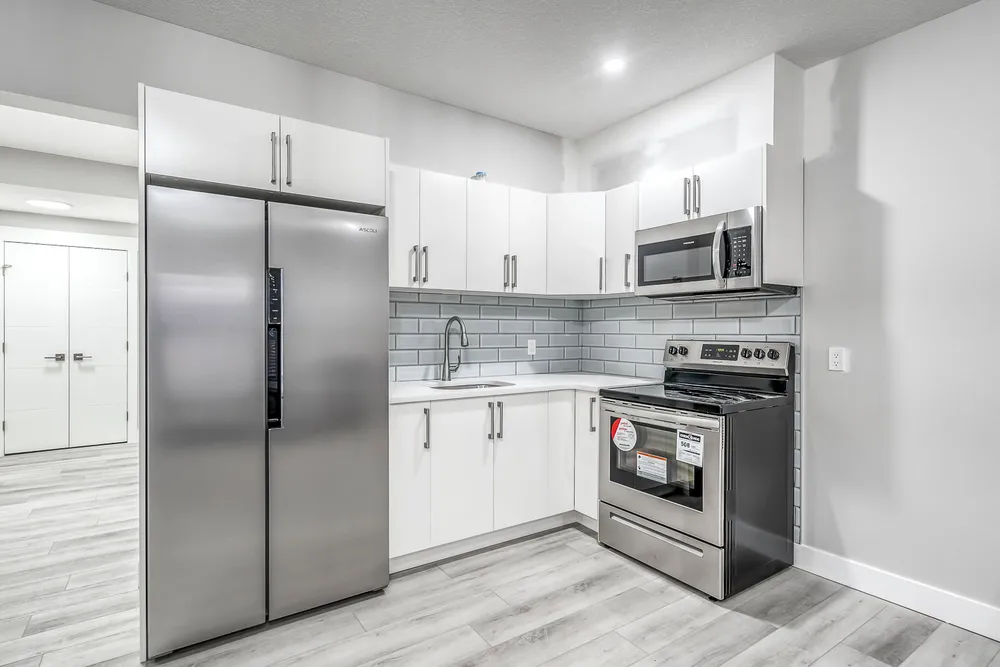
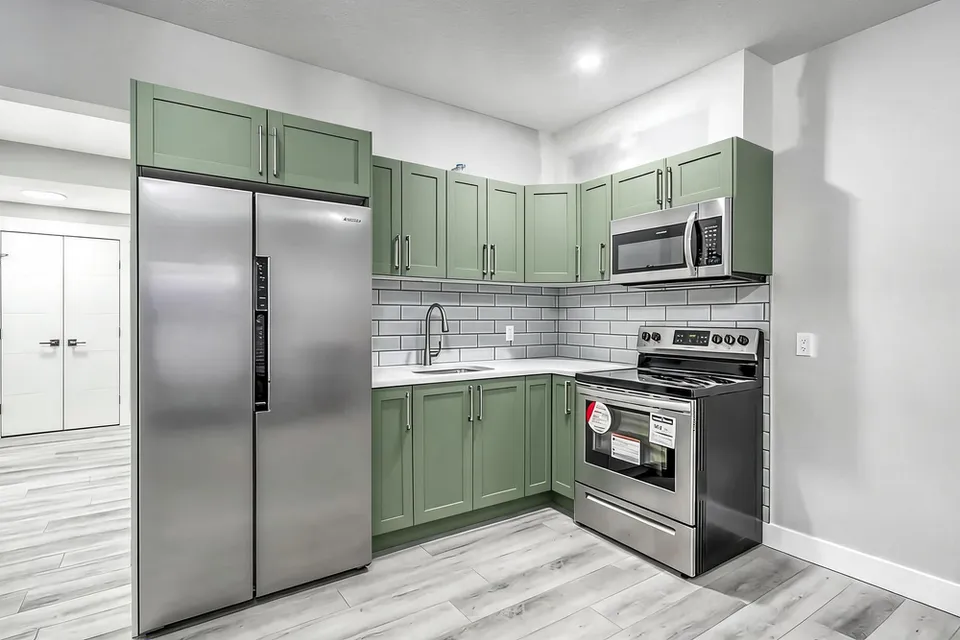
White cabinets to a sage-green kitchen concept
Before · source photoAfter · AI-generated concept
The brief: Repaint every upper and lower cabinet in muted sage green. Keep the flat doors, silver handles, appliances, counters, backsplash and floor; add no furniture.
What to review: The result gives a coordinated green cabinet direction and keeps the floor free of added furniture. It also introduces framed door fronts despite the flat-door instruction. Use this as a colour-and-door-style concept, not an exact preview of repainting the existing doors.
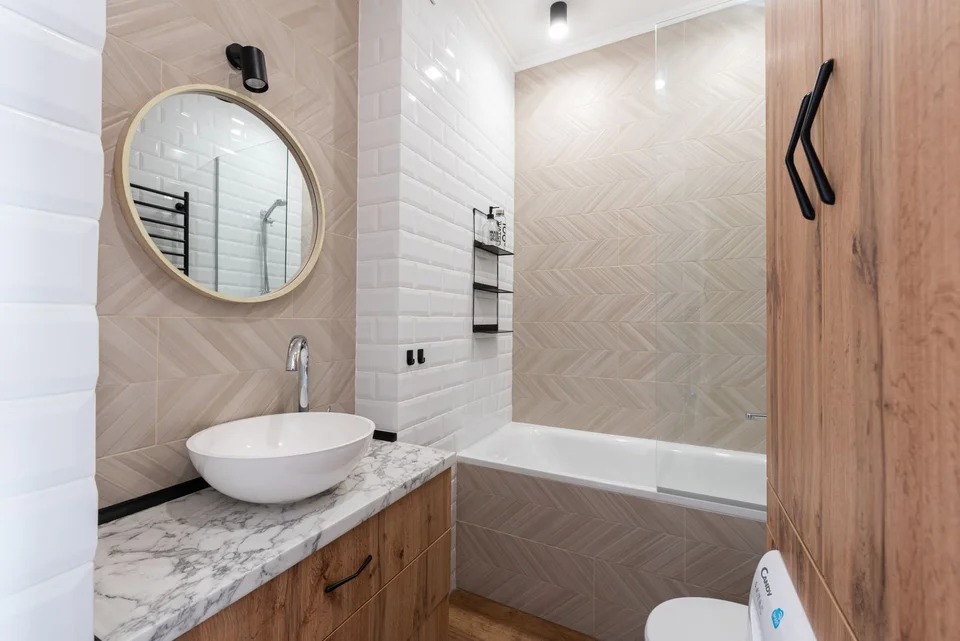
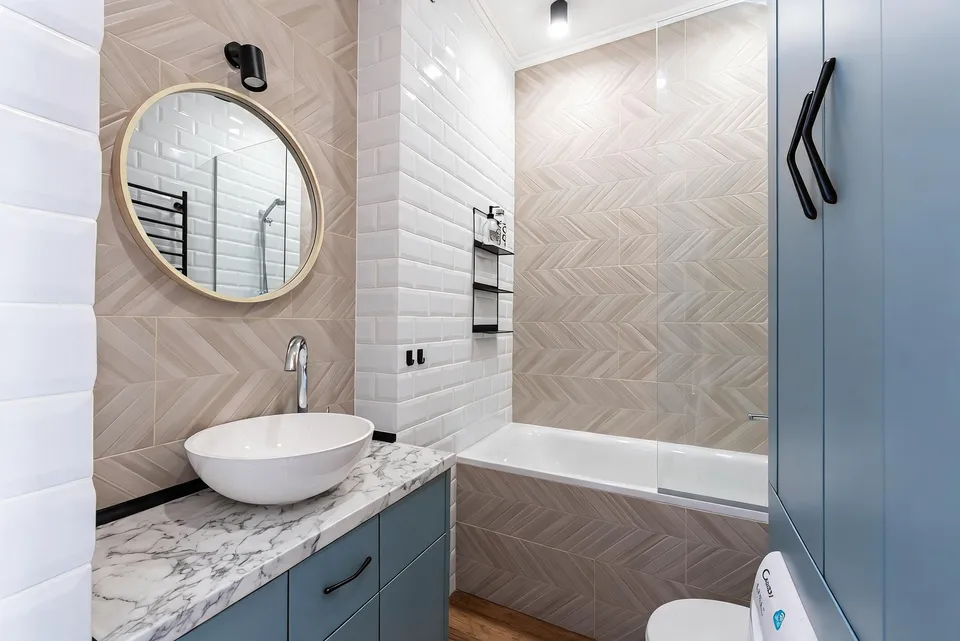
The brief: Change only the wooden vanity and tall cabinet to matte dusty blue. Keep the beige herringbone bath-front tiles, white basin, marble counter, mirror, bathtub and glass screen.
What to review: The revised concept keeps the bath front beige and gives the cabinetry a blue finish. Review drawer divisions, handles, reflections and tile detail against the original. This is a palette study; it does not specify a paint product or verify cabinetry dimensions and wet-area suitability.
A new account gets one starter credit for a watermarked preview. The US$4 Starter pack includes five credits and clean downloads. A standard image uses one credit; check your quote for other requests. Compare all credit packs and monthly plans.
Start with the decision, not a whole-house makeover
A property investor may need to choose between keeping a kitchen neutral and giving it a stronger cabinet colour. Begin with one clear photo and one decision. Describe the surfaces you want to change and the features that must remain. Keep the source photo available throughout the review. RenderVibe produces visual concepts for discussing a renovation; it does not estimate construction costs, resale value or return on investment. A concept can help you prepare questions for a contractor, but measurements, quotes and property inspections still determine whether the idea is feasible.
Kitchen test: a useful colour direction with a visible limitation
The kitchen comparison above uses an owner-approved source photo and an actual saved RenderVibe result. The brief asks for muted sage green on every cabinet while preserving the existing flat doors and other surfaces. An initial selected-area attempt changed only one upper cabinet and was rejected. A full-image attempt produced a coordinated green kitchen, but also introduced framed door fronts. That makes this a colour-and-door-style concept, not a reliable preview of repainting the original doors. If the budget only covers paint, keep the original door profile in the written scope and verify a physical finish sample.
Bathroom test: narrow the request when other surfaces change
The bathroom uses a licensed stock photo credited above, not a customer's completed flip. The first attempt changed both the cabinetry and the bath-front tiles to blue. The revised request explicitly preserved the beige bath-front tiles and produced the published result. The published brief summarizes that revision: change the wooden vanity and tall cabinet to dusty blue, retain the beige bath-front tiles, and preserve the basin, countertop, mirror, bathtub and glass screen. Compare the result with the source before selecting a real product.
Budget for attempts as well as the final image
These two example workflows took four requests in total: two kitchen attempts and two bathroom attempts. They used test access, and their displayed app charge was zero; provider usage still applied. They are not a paid-customer cost benchmark. For a budgeting illustration, a US$4 pack with five credits covers five standard one-credit attempts. If only three results meet your needs, spending the whole pack is about US$1.33 per usable result before tax. Some requests cost more than one credit. The quote is authoritative, and a completed image you dislike is different from a failed generation: failures return credits automatically, while another completed variation uses its quoted credits.
Turn the concept into a contractor discussion
Keep a short record for each option: the original photo, the generated concept, the instruction, and the details that need checking. For the kitchen, that could be the door profile, handle finish and exact paint product. For the bathroom, check cabinet material, drawer divisions and whether the proposed coating suits the room. Ask the contractor to price the actual work separately. Label the image as an AI concept when sharing it. Do not use a proposed renovation image as evidence of the property's current condition or a guaranteed finished result.
Choose the next step for this property
For a more focused brief, use the kitchen design guide or bathroom design guide. If the finishes are already complete and you want to explore furniture for marketing, use AI home staging with the real listing photo. Teams collecting buyer decisions can use the builder selection and approval workflow. Start with the existing photo, review each quote and compare each result before requesting another. The button below opens an editable renovation brief; it does not generate an image or charge credits automatically.