For residential builders and renovation contractors
Help buyers choose finishes. Keep a clear approval record.
Explore finish concepts, share property selections with buyers and record the version they approve. Try RenderVibe on one home before expanding to more projects.
Real RenderVibe before-and-after examples
Reference photos and saved results from RenderVibe tests. These are visual concepts, not photographs of completed work. Briefs below summarize the requests; source credits accompany licensed stock photos.
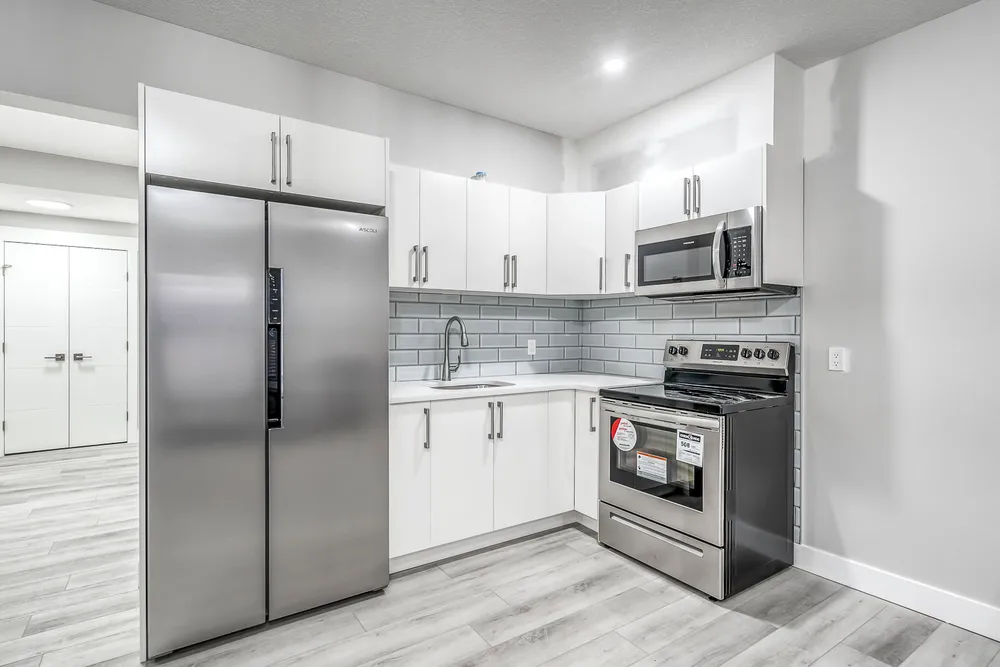
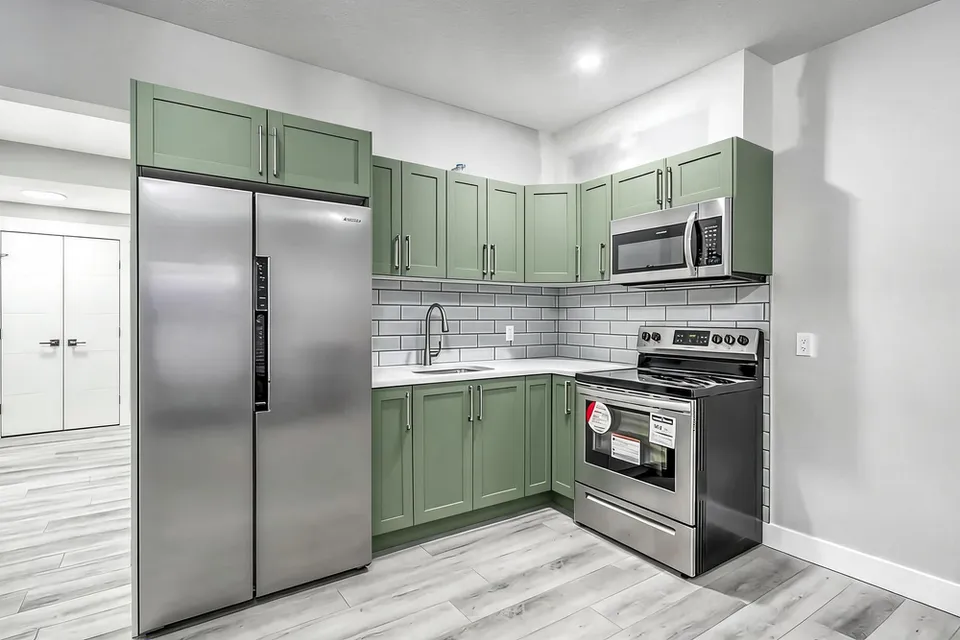
White cabinets to a sage-green kitchen concept
Before · source photoAfter · AI-generated concept
The brief: Repaint every upper and lower cabinet in muted sage green. Keep the flat doors, silver handles, appliances, counters, backsplash and floor; add no furniture.
What to review: The result gives a coordinated green cabinet direction and keeps the floor free of added furniture. It also introduces framed door fronts despite the flat-door instruction. Use this as a colour-and-door-style concept, not an exact preview of repainting the existing doors.
A new account gets one starter credit for a watermarked preview. The US$4 Starter pack includes five credits and clean downloads. A standard image uses one credit; check your quote for other requests. Compare all credit packs and monthly plans.
One kitchen. Three directions to discuss.
Use these as starting briefs. The photo comparison above shows white and sage green; the oak option below is a brief only.
Keep the white cabinets
Use the source photo to discuss the existing finish and record the exact product separately.
Explore sage green
Review the generated concept above, including its changed door fronts, before selecting a specification.
Prepare a light oak option
Start a separate brief for a timber finish. No oak render has been generated for this example.
Walk through a selection with your buyer
This is a product walkthrough, not a customer testimonial. Try it with a colleague before using it for a live job.
Builder prepares: open Properties & approvals, create a property and save the kitchen material, colour, product and notes. Attach the concept separately from the specification.
Builder shares: invite the buyer in People. Copy and share the invitation link; the app does not send an invitation email automatically.
Builder locks: record the proposed selection for review. A builder lock still means customer approval has not been recorded.
Buyer approves: the invited customer signs in, reviews the saved selection and signs the version, including a builder-locked selection. The record stores the signer, time and selection snapshot.
Both verify: check Activity for the customer sign-off record. Download finish summary and confirm the revision before ordering. Later changes follow the change-request workflow.
See what a finish record contains
Preview a fictional example with material, product, revision and approval fields. It is clearly marked as a sample and contains no customer data.
In your property, Download finish summary creates the same readable format from your saved selections. Open it and use your browser's Print command to save a PDF.
Why a builder created RenderVibe
Read the founder story and kitchen visualization pilot: a real source-to-concept comparison showing the finish ideas, the details that need revision, and the gap between what a homeowner imagines and what a builder understands. This is an owner-led pilot, not an independent customer testimonial.
Start with one property and one decision
A buyer can like a kitchen image without knowing which cabinet finish, product or revision it represents. Start with a single property and one choice you need to settle. In RenderVibe, open Properties & approvals, create the property and use a selection for the kitchen cabinetry. Add a reference image and write the material, colour, product and notes separately. This gives the conversation a specific subject. A visual concept helps the buyer express a preference; the written selection records what you are actually asking them to review.
Compare three directions without confusing them with specifications
For a first kitchen discussion, consider keeping the existing white cabinets, exploring muted sage green, or preparing a light oak brief. The source and generated comparison above show white and sage green; a light oak image has not been generated for this demonstration. These are discussion options, not three approved products. The green result also changes the door profile, which is disclosed beside the image. Before a buyer approves a real selection, replace general colour descriptions with the supplier, product code, finish and any exclusions that matter for your project.
Invite the buyer to review the saved selection
Use the property's People section to invite the customer with the email address they will use to sign in. The customer reviews the property in their own account. Save choices and attach the design image before asking for approval. The builder can lock a selection for review, but that action does not record the buyer's agreement. A customer can review and sign a builder-locked selection without having to change it first. Check that the buyer is reviewing the intended material and image, rather than a similar-looking earlier concept.
Keep builder locks and customer approvals distinct
A builder lock records the builder's decision. Customer sign-off is a separate action with a recorded name, time, image reference and saved selection snapshot. Signed choices are locked, and later changes go through the change-request workflow. A builder can review a request and describe any proposed fee or delay; the customer must accept the proposed change before it opens a new revision. Earlier approval records remain in the property's history. This is a way to document the conversation, not a promise that every construction disagreement will be prevented.
Share a readable finish summary
From Selections & approvals, choose Download finish summary. Open the downloaded HTML file in a browser, then use Print to create a paper copy or save a PDF. The summary lists each saved selection's material, colour, product, notes and revision, and distinguishes drafts, builder locks and customer approval records. It also shows the recorded signer and time where available. The exported sheet is a snapshot, so check the current property before ordering. For the underlying approval record, open Activity and download the relevant revision as JSON.
Run a small pilot before using it across your business
Try the workflow on one home with a colleague acting as the customer. Check the invitation, saved choice, builder lock, customer sign-off and exported summary together. Keep real specifications and samples available during the review. A new account includes one starter credit for a watermarked preview; standard images use one credit and other requests may cost more. Review each quote before generating. The US$4 Starter pack includes five credits and clean downloads. Further completed variations use credits too, so agree on the question each image should answer.
Prepare the next finish conversation
Use the kitchen design guide to plan a cabinet comparison and the bathroom design guide to frame a vanity or tile discussion. For building views from reference plans, explore AI architectural rendering. If the property is being marketed for sale, AI home staging serves a different purpose from approving proposed construction finishes. The button below starts a builder-focused concept brief. Once signed in, use Properties & approvals to create the actual property and invite your customer.