Compare furniture, layout and styling ideas using a real living-room photo. See a RenderVibe before-and-after example and prepare a focused design brief.
Plan your first design brief
Choose a direction before opening the studio. Your choices carry through sign-in into an editable brief. Upload your own photo there and review the quote before generating.
One starter credit per new account gives a watermarked preview. A standard image uses one credit; other requests can cost more. Paid credits unlock clean downloads. Selecting options here costs nothing.
Reference photos and saved results from RenderVibe tests. These are visual concepts, not photographs of completed work. Briefs below summarize the requests; source credits accompany licensed stock photos.
From a cleared room to a living-room concept
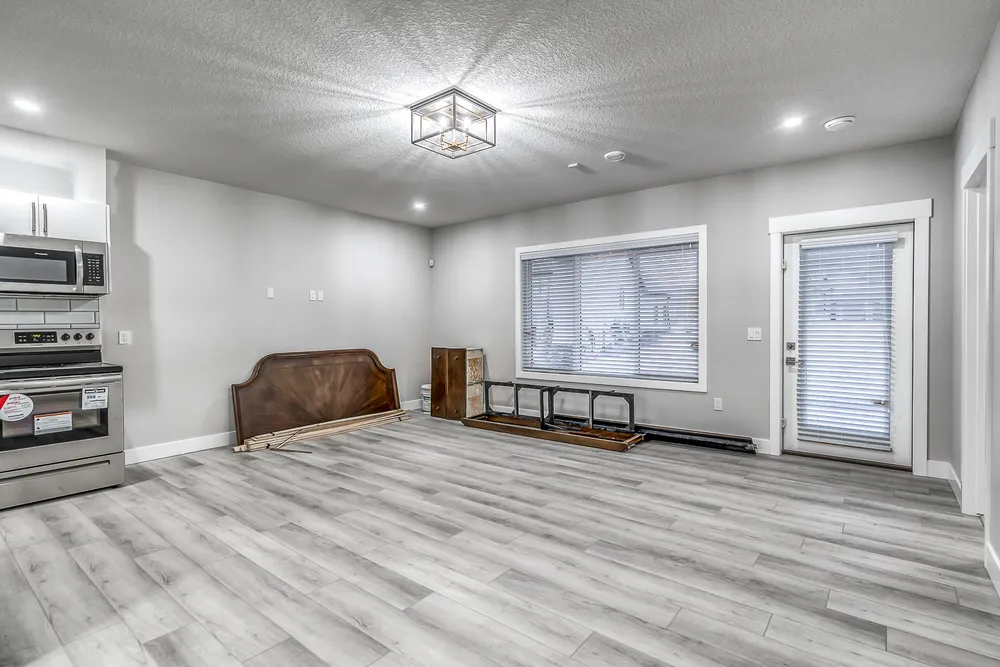
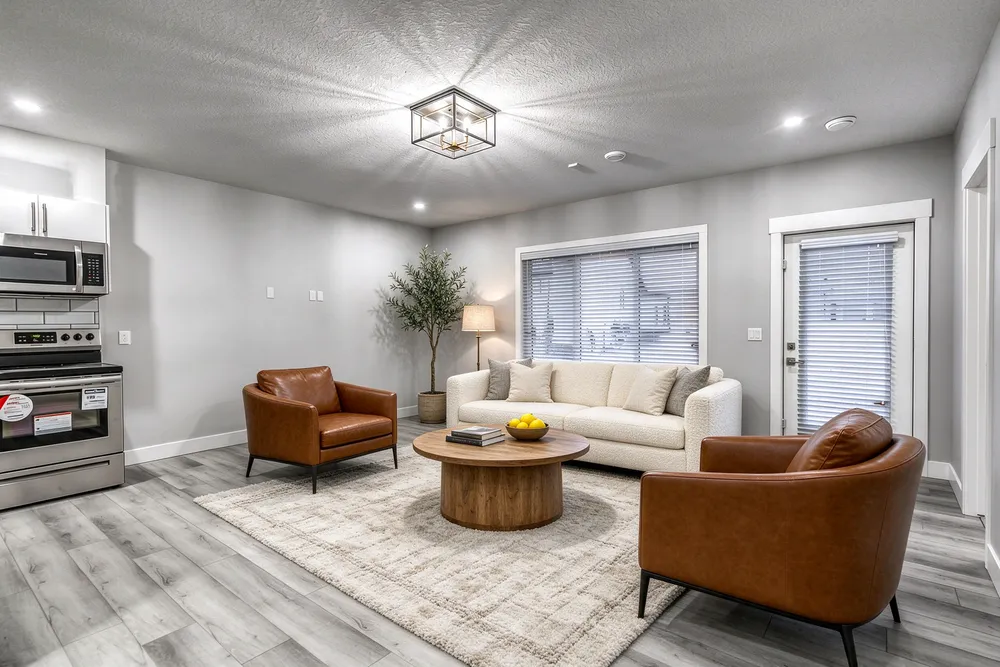
Before · source photoAfter · AI-generated concept
The brief: Add a cream sofa, cognac chairs, an oak coffee table and a textured rug. Remove stored furniture pieces and keep the room’s existing finishes.
What to review: The result illustrates a seating arrangement around the existing window and door. Compare the floor, openings and furniture scale with the source before using it.
A new account gets one starter credit for a watermarked preview. The US$4 Starter pack includes five credits and clean downloads. A standard image uses one credit; check your quote for other requests. Compare all credit packs and monthly plans.
Decide what your living room needs
Start with the problem you want to solve. An empty room may need a clear seating arrangement; a furnished room may need a calmer palette or a more useful conversation area. Write that goal before choosing a style. A living room often connects doors, windows and adjoining spaces, so the proposed furniture must respect those routes. An AI image can help you discuss possibilities, but a convincing image does not prove that a sofa fits. Keep your original photograph and take measurements before buying furniture.
Choose a reference that shows the whole seating area
Use a clear photo taken from a position that shows the floor, major openings and the area you want to furnish. Include the fireplace or television if it is important to the arrangement. Very wide-angle photos can make distances look larger, so review scale carefully. If there is clutter, specify which movable items may be removed and which fixtures must stay. Do not ask the tool to conceal damage or remove a permanent feature from a listing photo. The source remains your reference for what actually exists.
What the real example shows
The example above starts with a room containing stored furniture pieces. The brief asks for a cream sofa, cognac chairs, an oak coffee table and a textured rug while retaining existing finishes. The result offers one way to organize a seating group. It is a generated proposal, not a photograph of an installed room. Compare the window, doorway, flooring and furniture scale with the source. Check that each seat has a usable approach and that tables leave enough room to move through the actual space.
Write a brief that protects the room
A useful starting brief is: “Create a comfortable conversation area with a compact sofa, two chairs and a coffee table. Preserve the windows, doors, walls, floor and ceiling. Keep the doorway clear and leave circulation around the seating.” Add a style preference only after those requirements. If you want a finish change, name it explicitly rather than mixing staging and renovation instructions. A second version could explore a different rug or sofa colour while holding the rest constant. That makes the comparison easier to interpret and reduces unnecessary iterations.
Review the result before sharing or shopping
Look first at fixed features: openings, wall lengths, ceiling lines and any built-in storage. Then inspect furniture for extra legs, awkward overlaps or blocked access. Consider how people reach each seat and where a door would swing. AI can depict attractive arrangements that do not work in practice. Use dimensions, product specifications and physical material samples for purchase decisions. If a generated image is used in property marketing, clearly identify it as a virtual staging concept and retain the original view so viewers can understand the proposed changes.
Choose a focused first experiment
A new RenderVibe account includes one starter credit for a watermarked preview. A standard image uses one credit; review the displayed quote before confirming because other requests can cost more. The US$4 Starter pack includes five credits and clean downloads. Start with one question, such as whether two chairs or one smaller sofa better communicates the room’s purpose. Further versions use credits too. Do not treat a trial image as a final purchasing plan: save the useful direction and validate its dimensions in the room.
Continue with the right workflow
For a listing, use AI home staging to focus on furniture while keeping the property’s existing finishes. For a broader material exploration, read the AI interior design guide. For a compact sleeping area, see our small-bedroom staging example. The button below opens a living-room brief in the studio. Upload your own photo, adapt the suggested description to your room, and review the credit quote before generating. Save the source and result together when discussing the next step with a household member or designer.