See a real small-bedroom staging example. Plan a focused brief, compare the source and AI result, and check furniture scale and access before sharing.
Plan your first design brief
Choose a direction before opening the studio. Your choices carry through sign-in into an editable brief. Upload your own photo there and review the quote before generating.
One starter credit per new account gives a watermarked preview. A standard image uses one credit; other requests can cost more. Paid credits unlock clean downloads. Selecting options here costs nothing.
Reference photos and saved results from RenderVibe tests. These are visual concepts, not photographs of completed work. Briefs below summarize the requests; source credits accompany licensed stock photos.
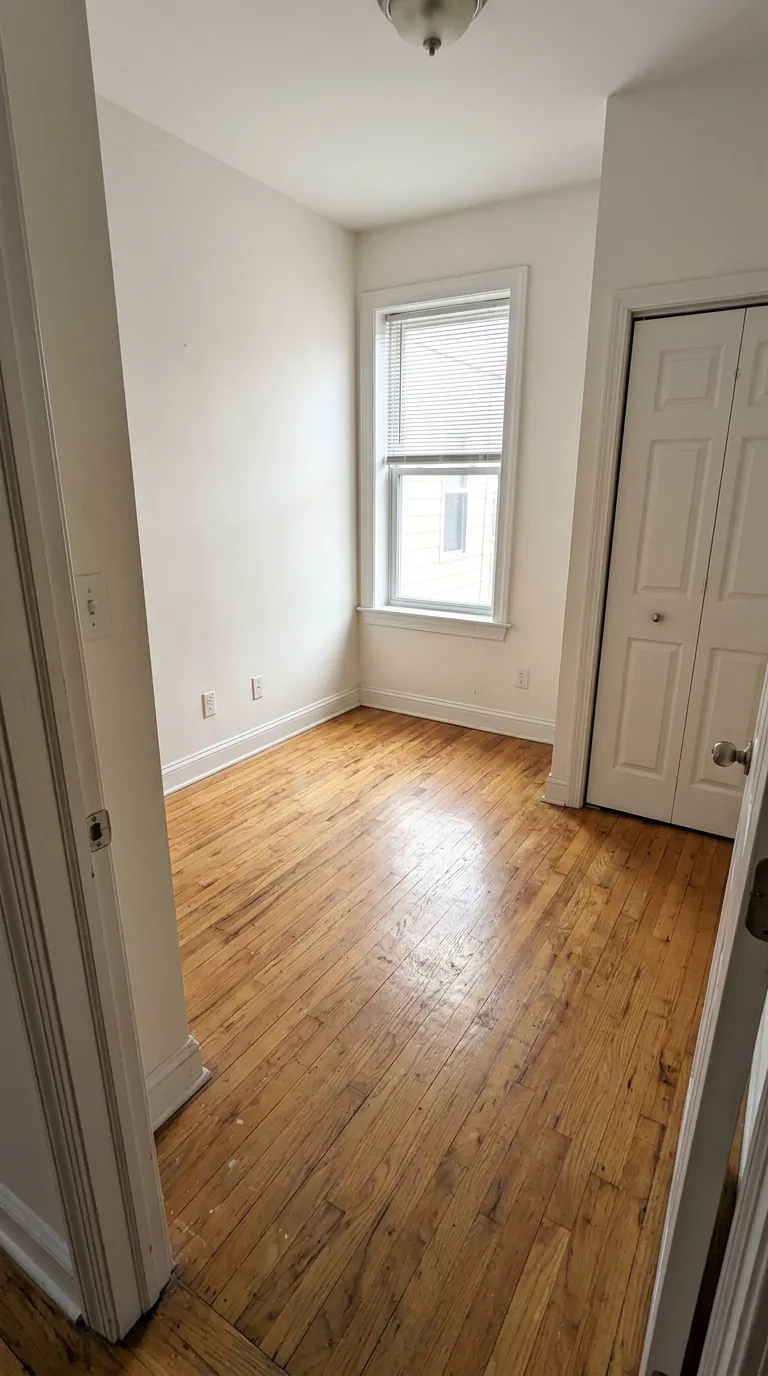
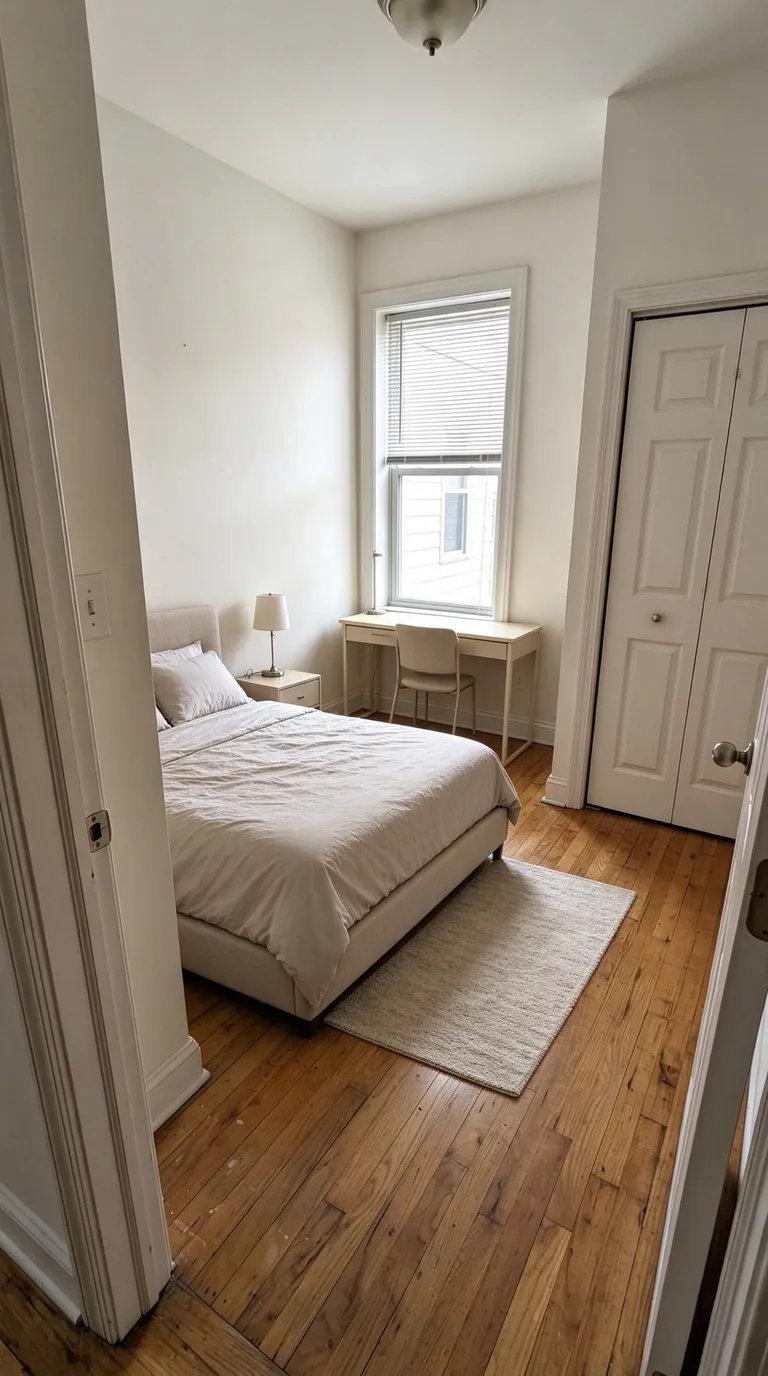
A compact bedroom with a study area
Before · source photoAfter · AI-generated concept
The brief: Add a bed along the left wall, a desk under the window, a nightstand and a small rug. Keep the closet accessible.
What to review: The concept explores how sleeping and study areas could share a small room. It does not verify that the furniture fits; measure circulation and closet clearance separately.
A new account gets one starter credit for a watermarked preview. The US$4 Starter pack includes five credits and clean downloads. A standard image uses one credit; check your quote for other requests. Compare all credit packs and monthly plans.
Give the room a clear purpose
A small empty bedroom can be difficult to read in a listing photo. A staging concept helps explain one plausible use: a guest room, a bedroom with a study area or a simple sleeping space. Choose one purpose for the first image. Match that purpose to the room your listing actually offers. Trying to fit a bed, office, exercise area and large storage units into a narrow room can make the concept less believable. Use the actual photograph as your reference and judge the proposed furnishings against the available floor area.
Choose a photo that shows access
Include the window, doorway and closet where possible. Those fixed features are important when you review where furniture has been placed. A bright photograph with the floor visible makes comparison easier. Avoid asking the image model to make the room wider or remove an inconvenient opening. If you use a second camera angle, assess that output against its own source: separately generated views are not a verified three-dimensional model of the same furnished room.
The brief behind this example
Our test requested a bed along the left wall, a desk under the window, a nightstand and a small rug while keeping the closet accessible. The source photograph and saved result above show that exact test room. The output places the main pieces in those areas and adds a neutral palette. It is a visual suggestion, not a furniture shopping list. A bed that appears to fit in a perspective image still needs checking against real measurements.
Review the door, closet and walking space
Start with openings rather than decorative details. Compare the window shape and door positions with the source. Check whether the bed blocks the route into the room or whether the desk obstructs closet access. Then review furniture scale, shadows and floor patterns. A narrow space can look convincing even when the proposed furniture would be awkward to use. Measure the room and actual furniture separately before making purchasing or layout decisions; the image does not supply those measurements.
Ask for a focused revision
If the room looks crowded, ask for fewer pieces or a simpler arrangement. Change one thing at a time: remove the nightstand, use a more compact desk or reduce accessories. Preserve the original photograph so you can catch unintended changes after each version. When sharing a listing concept, identify it as virtually staged and keep the original available. Do not imply that the proposed furniture is included with the property or that the image records a completed physical transformation.
Try the workflow with clear costs
Start with AI home staging or read the virtual staging guide. New accounts receive one starter credit for a watermarked preview. A standard single image uses one credit; review the quote for your request. Paid packs provide clean downloads and more credits, and failed generations return their credits automatically. The cost guide explains the available choices. For help framing a revision, use the prompt examples rather than adding unrelated style instructions.