Try AI room design from your photo. Describe your ideas, review the credit quote and compare furniture and colour concepts with your original room.
Real RenderVibe before-and-after examples
Reference photos and saved results from RenderVibe tests. These are visual concepts, not photographs of completed work. Briefs below summarize the requests; source credits accompany licensed stock photos.
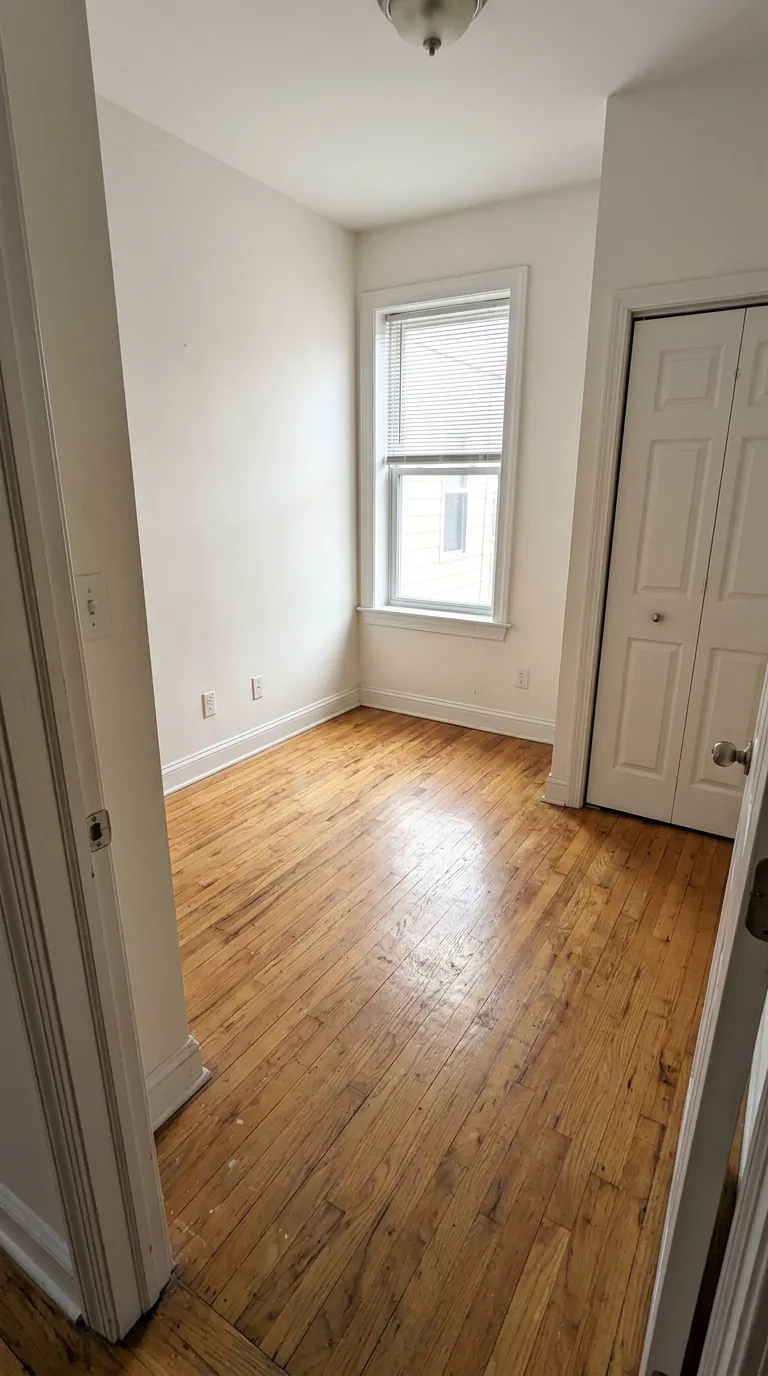
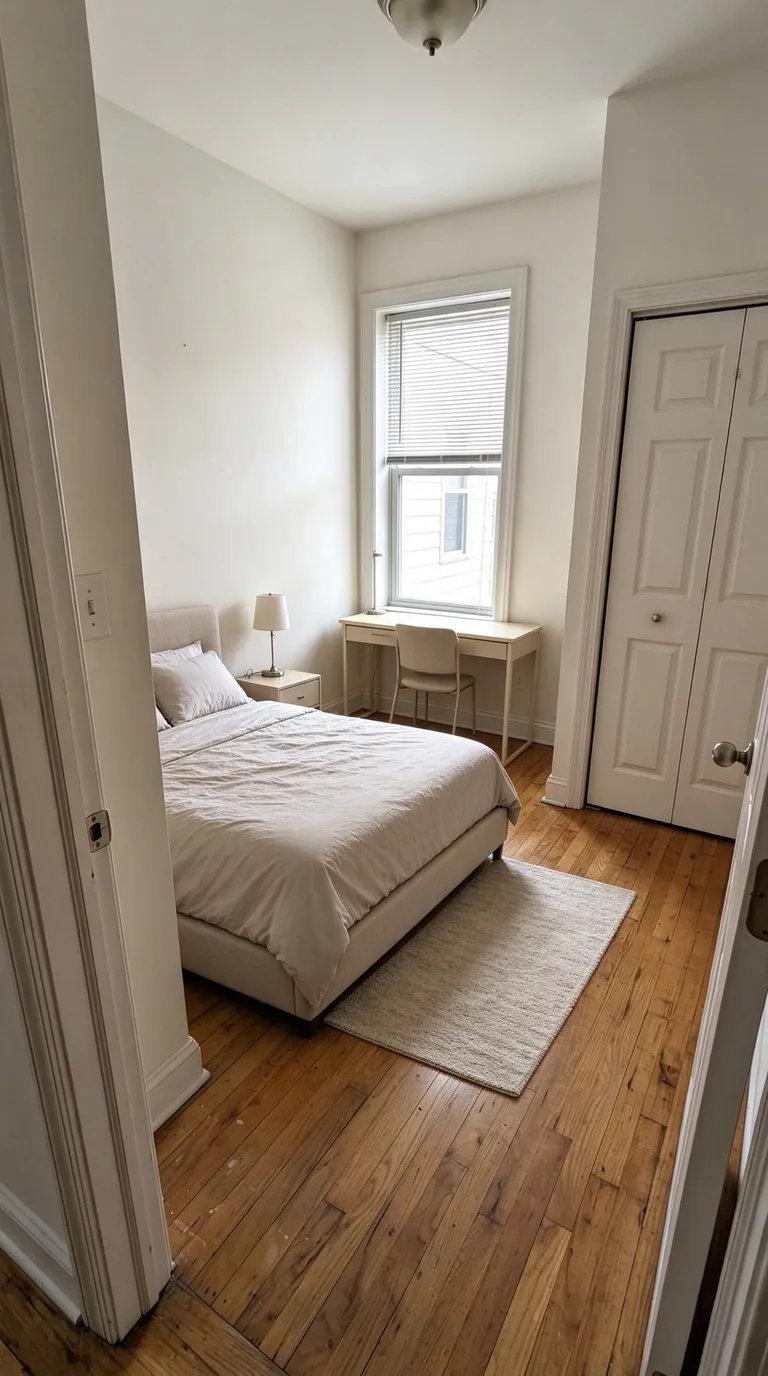
A compact bedroom with a study area
Before · source photoAfter · AI-generated concept
The brief: Add a bed along the left wall, a desk under the window, a nightstand and a small rug. Keep the closet accessible.
What to review: The concept explores how sleeping and study areas could share a small room. It does not verify that the furniture fits; measure circulation and closet clearance separately.
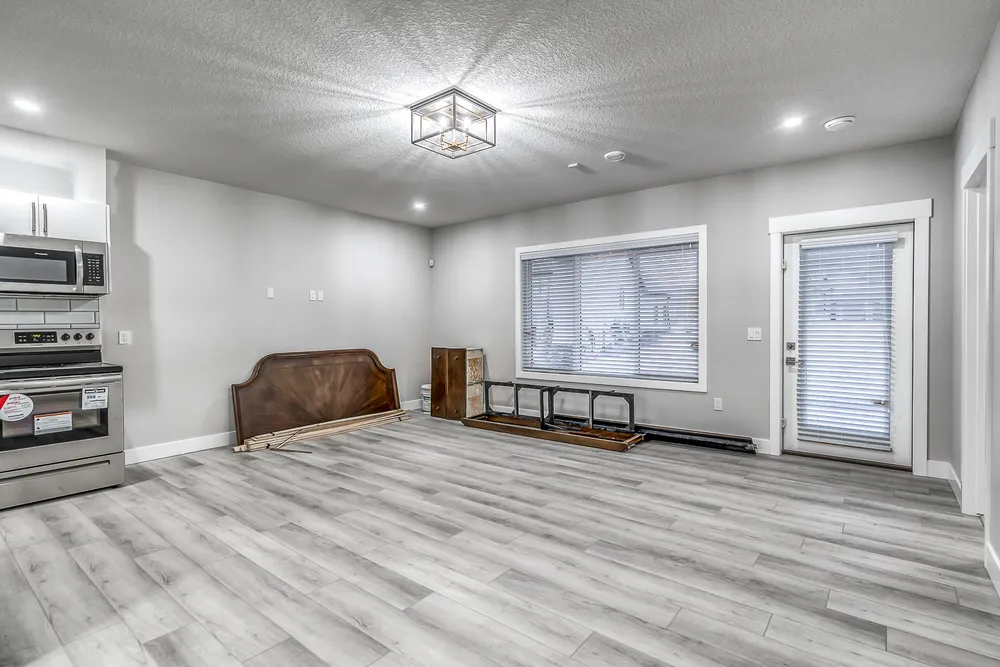
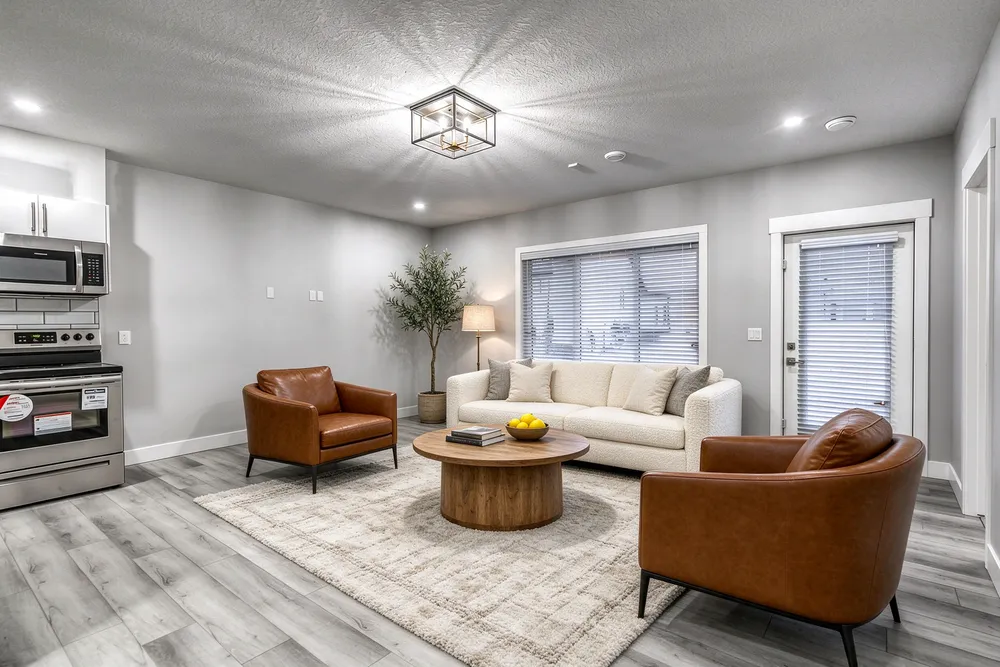
From a cleared room to a living-room concept
Before · source photoAfter · AI-generated concept
The brief: Add a cream sofa, cognac chairs, an oak coffee table and a textured rug. Remove stored furniture pieces and keep the room’s existing finishes.
What to review: The result illustrates a seating arrangement around the existing window and door. Compare the floor, openings and furniture scale with the source before using it.
A new account gets one starter credit for a watermarked preview. The US$4 Starter pack includes five credits and clean downloads. A standard image uses one credit; check your quote for other requests. Compare all credit packs and monthly plans.
Start with the room you have
AI room design is a way to explore how an existing space could feel with different furniture, colours or finishes. You do not need to build a digital room model to begin. Upload a photograph to RenderVibe and describe the changes you want to see in plain English. A clear starting image helps you keep the conversation anchored to the room you actually have. Whether you are exploring a living room, bedroom or dining area, choose a specific question for the first concept rather than asking for an entire renovation at once.
Choose an image with useful context
Use a photograph that shows the main walls, floor and important openings. Keep enough of the room in frame to understand its layout. Before you upload, consider which features are essential to the design question: the fireplace, a large window, or the position of a doorway. Tell RenderVibe that those should remain when you describe your changes. A photo taken from another angle may support a different discussion, but independently generated views can disagree. Review each concept against its own source rather than assuming that every view is part of one verified model.
Write a room-level prompt
A helpful prompt describes the room’s use, the pieces you want and the features to keep. For example: ‘Create a calm reading and living space with a cream sofa, two compact chairs, walnut furniture and warm white walls. Keep the existing floor, windows and fireplace.’ You can describe lighting and atmosphere, but also mention the practical details that matter, such as leaving a path to the doorway. If you are unsure about the next step, use the in-app assistant to help you organize the request before reviewing its credit quote.
Use each version to answer a question
After the first result, decide which part deserves another look. You may want a smaller sofa, fewer accessories, a lighter palette or a different dining arrangement. Give the next version a focused brief and compare it with the previous concept and the source photo. This keeps the review understandable for a partner or client. It also helps you avoid spending credits on changes that do not address the original question. Name the decision you are trying to make before starting another generation, then review whether the image actually helps you make it.
Review what the image can tell you
Inspect the result for altered openings, implausible furniture scale and details that do not match the room. An AI room image can help you compare visual directions, but it does not provide measured furniture placement or confirm that a material will look identical in your lighting. Keep the original photo available, check dimensions separately and use real samples before making final selections. For a broader furniture and finish scheme, continue with AI interior design. For a home being prepared for sale, explore AI home staging.
Try a room concept with clear credit costs
New accounts receive one starter credit, enough for a standard single image with a watermark. RenderVibe shows the quote before you confirm generation, so you can decide whether to proceed. Failed generations return their credits automatically. To generate more or download clean images, choose a one-time pack or monthly plan. The US$4 Starter pack includes five credits; the larger one-time packs offer 30 credits for US$19 or 100 for US$49. Monthly plans are available for ongoing work, with credits that expire at the end of each billing period.