How to photograph an empty room for virtual staging
Take a listing photo that virtual staging can work with: show the walls, windows and floor clearly, then compare every staged concept with the original.
Real RenderVibe before-and-after examples
Reference photos and saved results from RenderVibe tests. These are visual concepts, not photographs of completed work. Briefs below summarize the requests; source credits accompany licensed stock photos.
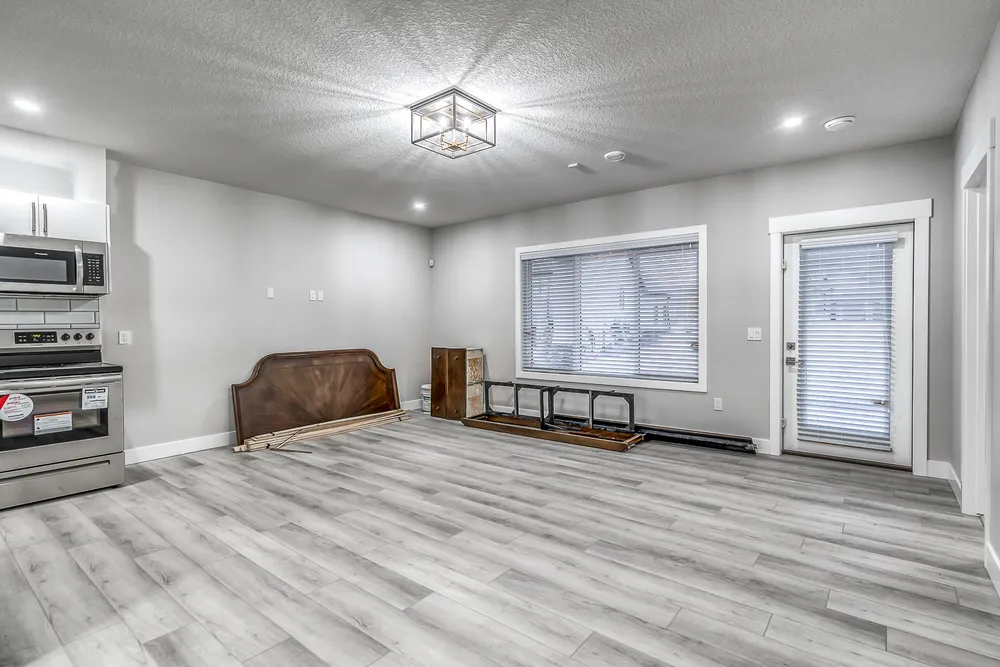
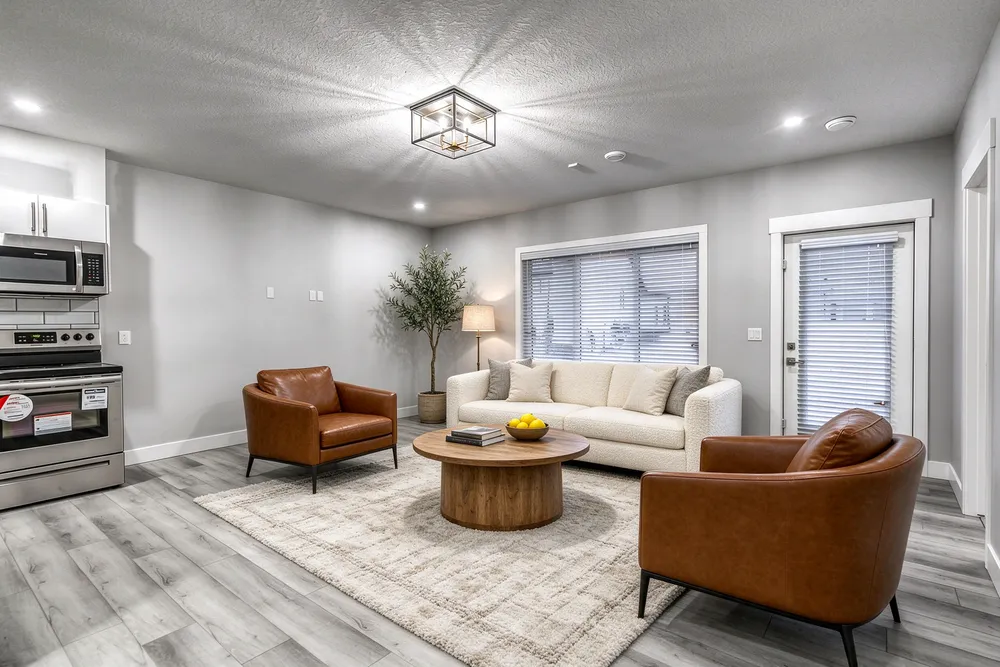
From a cleared room to a living-room concept
Before · source photoAfter · AI-generated concept
The brief: Add a cream sofa, cognac chairs, an oak coffee table and a textured rug. Remove stored furniture pieces and keep the room’s existing finishes.
What to review: The result illustrates a seating arrangement around the existing window and door. Compare the floor, openings and furniture scale with the source before using it.
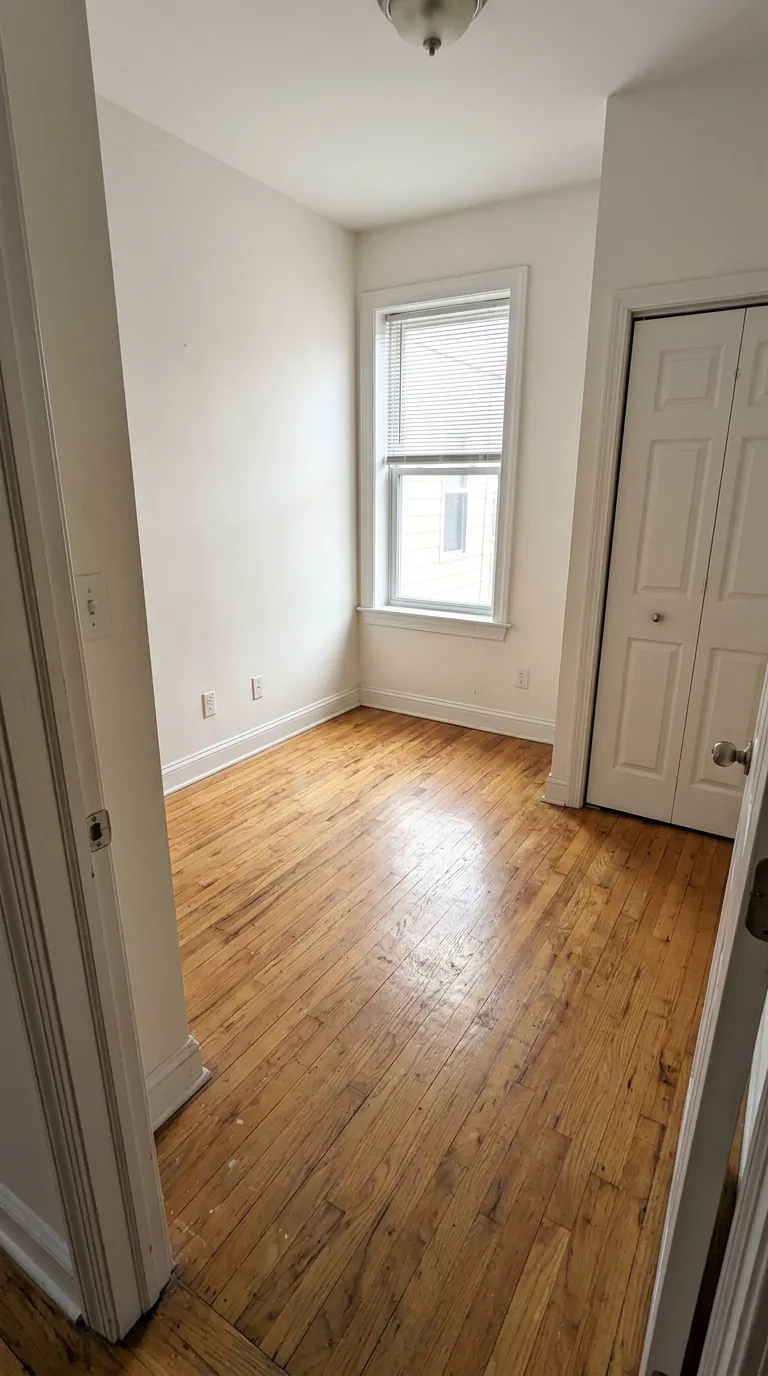
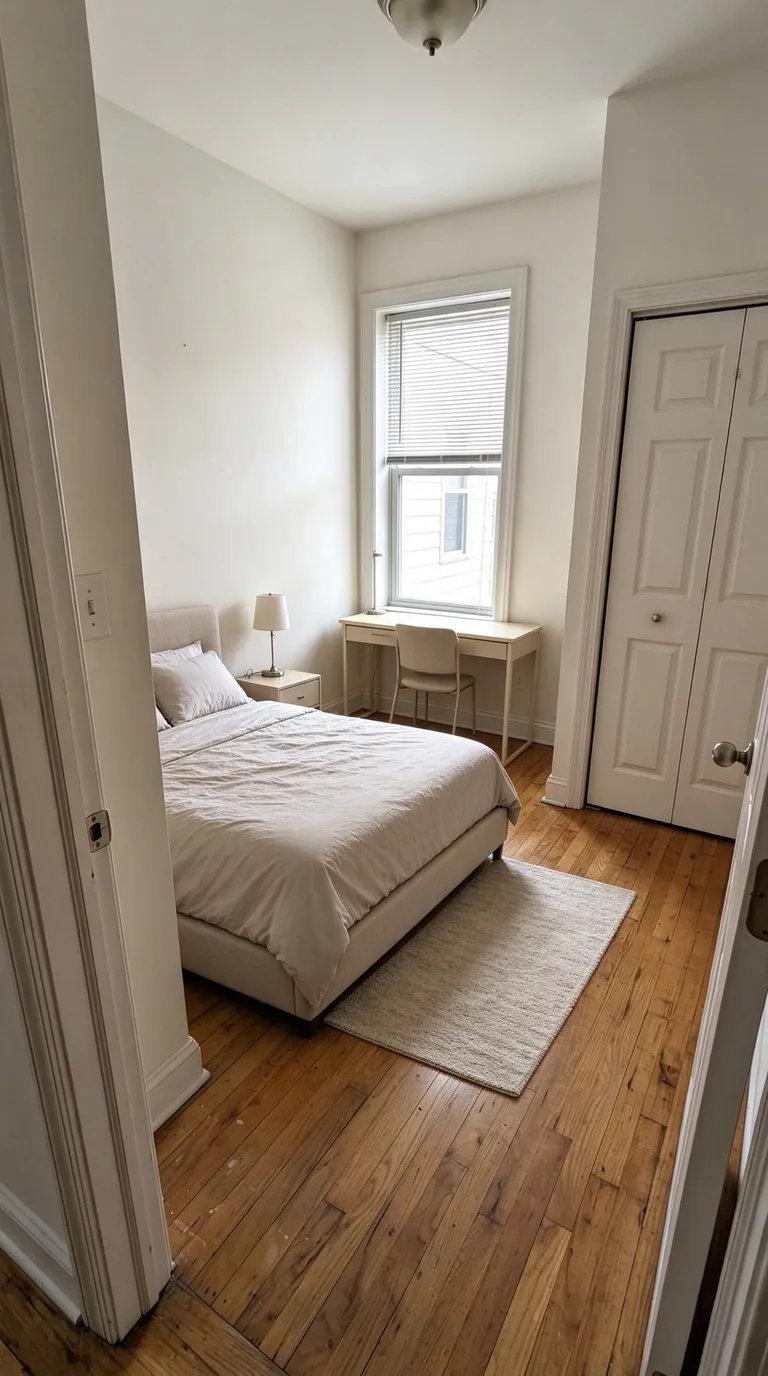
A compact bedroom with a study area
Before · source photoAfter · AI-generated concept
The brief: Add a bed along the left wall, a desk under the window, a nightstand and a small rug. Keep the closet accessible.
What to review: The concept explores how sleeping and study areas could share a small room. It does not verify that the furniture fits; measure circulation and closet clearance separately.
A new account gets one starter credit for a watermarked preview. The US$4 Starter pack includes five credits and clean downloads. A standard image uses one credit; check your quote for other requests. Compare all credit packs and monthly plans.
Why the source photo matters
Virtual staging adds furniture to a photograph of the actual room. It cannot recover a wall the camera never saw or a window hidden in shadow. A clear, evenly lit source gives the tool the information it needs and gives you a reference for checking the result. Problems such as a sofa floating in a doorway or a window that shifted are easier to catch when the original shows the room's edges plainly.
Show the room's boundaries
Stand in a corner or doorway so the frame includes at least two walls, the floor and the main window or opening. Keep the camera level so vertical lines stay vertical. Avoid extreme wide-angle settings that stretch the floor. Include the fixed features you want kept: the fireplace, built-in shelving, flooring, trim and window positions. If an entrance or hallway matters for how people move through the space, keep it in the frame so you can confirm later that the staged furniture leaves it clear.
Light it evenly and clear it out
Open the blinds, turn on the room's lights and shoot when the window is not blown out. A balanced exposure helps you see the floor and wall finishes in both the source and the result. Remove leftover boxes, cords and small items where you can. Virtual staging is meant to add proposed furniture, not hide clutter. A RenderVibe brief can ask to keep the floor, walls and windows as they are, and a clean source makes that request easier to verify.
Write a short brief for the photo
Name the room's purpose, the few pieces that matter and a short colour palette. For example: 'stage this living room with a cream sofa, a timber coffee table and a small rug, and keep the existing fireplace and windows.' State what should stay before you describe what should be added. If the first result feels crowded, ask for fewer pieces rather than a new style. The virtual staging prompt guide has more brief examples.
Compare the concept with the original
AI can change details you did not ask to change. Put the staged concept next to the source photo and check openings, ceiling height, floor pattern and built-in features. Confirm that the furniture looks plausible for the space and that access through the room stays clear. A staging concept communicates an idea. It does not establish measurements or prove that a particular piece will fit.
What does a first try cost?
New RenderVibe accounts receive one starter credit for a watermarked preview. A standard single image uses one credit. The quote before each generation states the charge because some edits and video cost more. Failed generations return their credits. The Starter pack is US$4 once for five credits with clean downloads, and pack credits do not expire. See pricing for the Listing and Studio packs and the monthly plans.
Can I stage a photo taken on a phone?
Yes, if it shows the room clearly. Hold the phone level, use the main lens rather than the ultra-wide, and keep the walls, floor and windows in frame. Start from AI home staging, use virtual staging for a listing, or small-bedroom staging for a tight room.